1. How to Access SHCR
Although SHCR’s utility for you as a recordkeeping companion and support system comes from its ready availability and use on your mobile phone, you can also use SHCR on a number of devices:
1. Online: open it in any browser at optimizeme.us/shcr.
2. On your cell phone: put it on your home screen as an app.
iPhone
1. Open Safari and go to: https://optimizeme.us/shcr
2. Tap the Share button (the square with an arrow pointing up).
3. Scroll down and tap Add to Home Screen, then tap Add.
4. Open the app with the gold-framed SHCR icon on your home screen.
Android
1. Open Chrome and go to: https://optimizeme.us/shcr
2. Tap the three dots at the top right.
3. Tap Add to Home screen (or Install app), then Add.
4. Open the app with the SHCR icon on your home screen.
3. On your tablet: the same way as on a cell phone.
4. On your PC desktop or laptop: open optimizeme.us/shcr in any browser. Installing it gives SHCR its own window, without the browser's tabs, and an icon you click to open it. It is the same SHCR with the same record. How to install it:
Chrome
1. Open Chrome and go to: https://optimizeme.us/shcr
2. Click the Install icon at the right end of the address bar (a screen with a down arrow).
3. Click Install.
4. Open the app with the SHCR icon in your Start menu (Windows) or Applications folder (Mac).
Edge
1. Open Edge and go to: https://optimizeme.us/shcr
2. Click the App available icon at the right end of the address bar.
3. Click Install.
4. Open the app with the SHCR icon in your Start menu (Windows) or Applications folder (Mac).
Firefox (Windows)
1. Open Firefox and go to: https://optimizeme.us/shcr
2. Click the web apps button in the address bar.
3. Firefox adds SHCR to your taskbar and Start menu.
4. Open the app with the SHCR icon on your taskbar.
Firefox on a Mac has no install button. Use SHCR in a Firefox tab, or install it with Chrome, Edge or Safari.
Safari (Mac)
1. Open Safari and go to: https://optimizeme.us/shcr
2. Choose File, then Add to Dock.
3. Click Add.
4. Open the app with the SHCR icon in your Dock.
Sign in with your OptimizeMe email and password on each one. Entries you make on any of them go up to the OptimizeMe website and come down to the others, so you see the same record everywhere. The exception is entries you mark to stay on that device only.
2. About your Self-Health Care Record
Your completely developed Self-Health Care Record (SHCR) will have tools that enable you to have and hold ALL of your health information in your own easily updated digital record. It belongs to you. You decide what goes in it, who may see it, and whether it is locked.
The record is the other half of OptimizeMe’s revolutionary approach to supporting self-health care for all—everyone and anyone who can access and use the internet. As such, its convenience and utility are unparalleled.
Every entry is stamped with the date and time it was added.
3. What SHCR Features come with your plan
Every OptimizeMe member, from Basic up, is able to use the app. The number and kind of features you have access to depends on the subscription plan you sign up for. Each plan includes everything in the plans before it.
| SHCR Features come with your plan | |||
|---|---|---|---|
| # | Plan | Number of features | What the app includes |
| 1 | Basic | 14 out of 30 currently available features | Speak it, Type it, Quick measure, Mood, your entries, At a glance, Delete, Lock my record, Who may access my record, Search of everything in your plan, and Getting Started (with Photo of label in What I take) |
| 2 | Bronze | 21 out of 30 currently available features | Adds Draw (with select and straighten), Voice, Write, Positive Events, Negative Events and Summary |
| 3 | Silver | 28 out of 30 currently available features | Adds pictures (scale screen, paper and documents), Upload a file, Upload a video, documents in Getting Started, My Record Book, One-page summary, Share with someone and Hormone Mapping |
| 4 | Gold | 30 out of 30 currently available features | Adds label reading on Home (Take a picture) and Record a video |
| 5 | Platinum | 30 out of 30 currently available features | Everything in Gold, plus features added in later updates |
When you upgrade, the new features open right away. If you move to a lower level subscription plan, you keep, see and search everything you have added; the features above your new subscription plan close until you upgrade again.
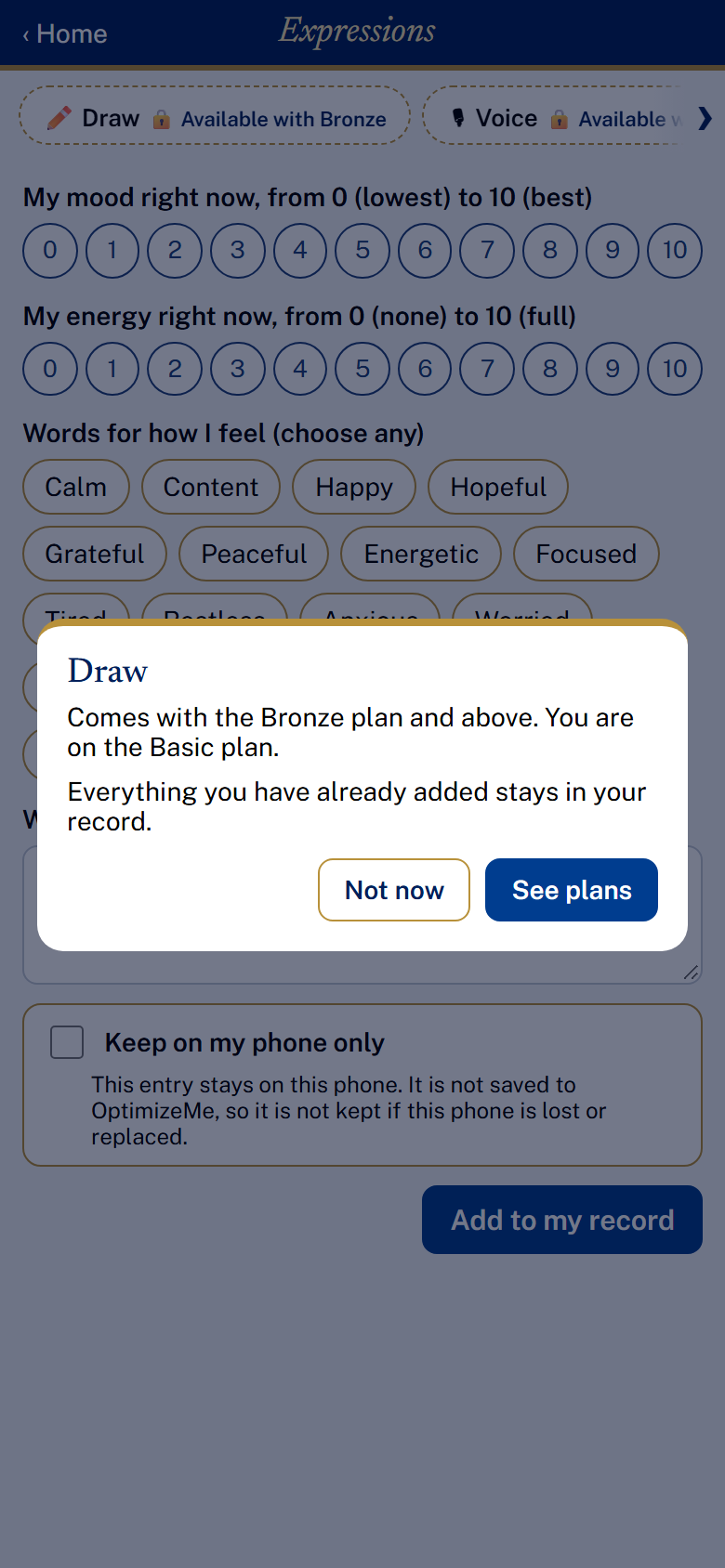
A feature above your plan shows which plan it comes with.
4. Putting the app on your phone
iPhone: open Safari and go to optimizeme.us/shcr. Tap Share (the square with an up arrow; on newer iPhones it is under the ... button at the bottom of the screen), tap Add to Home Screen, then Add.
Android: open Chrome, go to optimizeme.us/shcr, tap the three dots, then Add to Home screen (or Install app).
The gold-framed SHCR icon appears on your home screen. Tap it to open the app full-screen, like any other app.
5. Signing in
Sign in with the same email and password you use on optimizeme.us. Keep me signed in is ticked for you. Feel free to untick it if you wish. Every password box has an eye: tap it to show or hide what you typed.
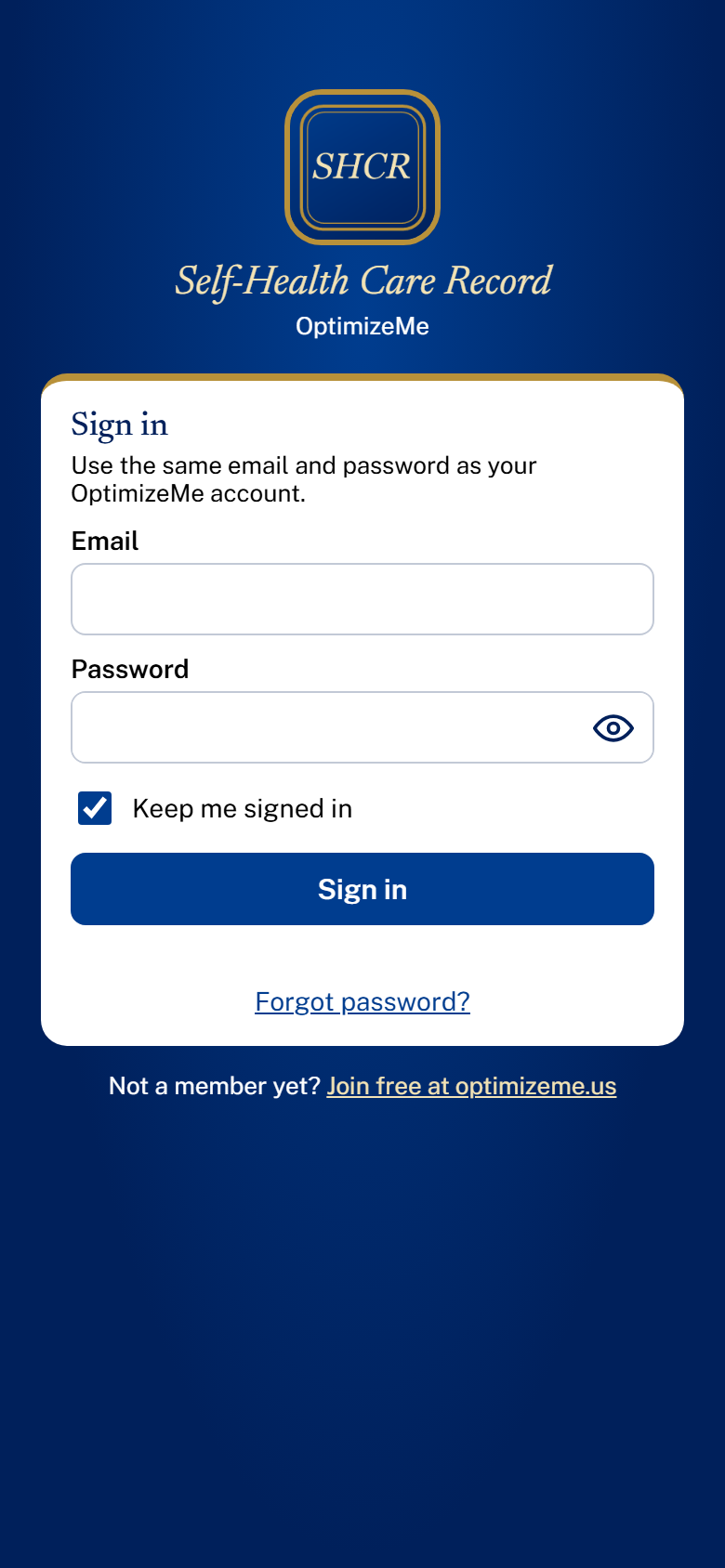
Signing in
If you are already signed in to optimizeme.us in that browser, the app opens without asking. On an iPhone, the home-screen app may ask you to sign in once more.
6. Getting Started
Getting Started fills in your record: About me (with your photo), My health story, What I take, My measures and My documents (Silver and up). It shows on Home until you have added it to your record; after that, find it under My account (the round letter at the top right of Home), Getting Started answers.
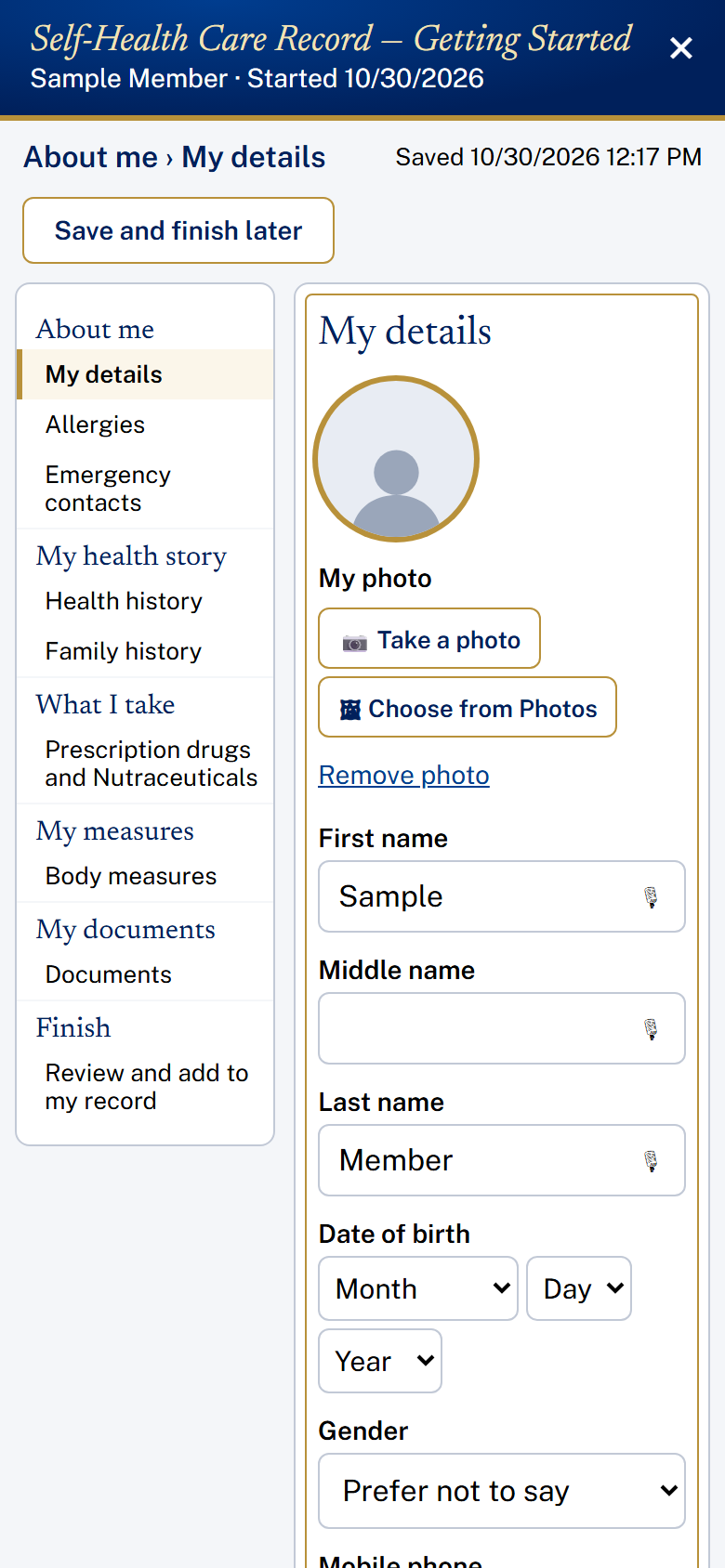
Getting Started: About me
Your name, email, mobile phone, city, state and ZIP code are filled in for you from your OptimizeMe account. Your answers are saved as you type, and Save and finish later is on every page. On the Finish page, every answer shows in place, as you entered it; tap Add to my record.
Dates are chosen from Month, Day and Year lists. Year lists start with Don't recall, and Age it started starts with Don't know.
The microphone buttons: on computers and Android phones they listen when tapped. On an iPhone, tap the microphone on your keyboard instead; if your keyboard has none, turn on Dictation in Settings, General, Keyboard.
What I take is a table with numbered rows. Tap a row's number to expand the row; tap it again to fold it back. Tap any box to open it larger, so you can see what you type. Ways to fill a row:
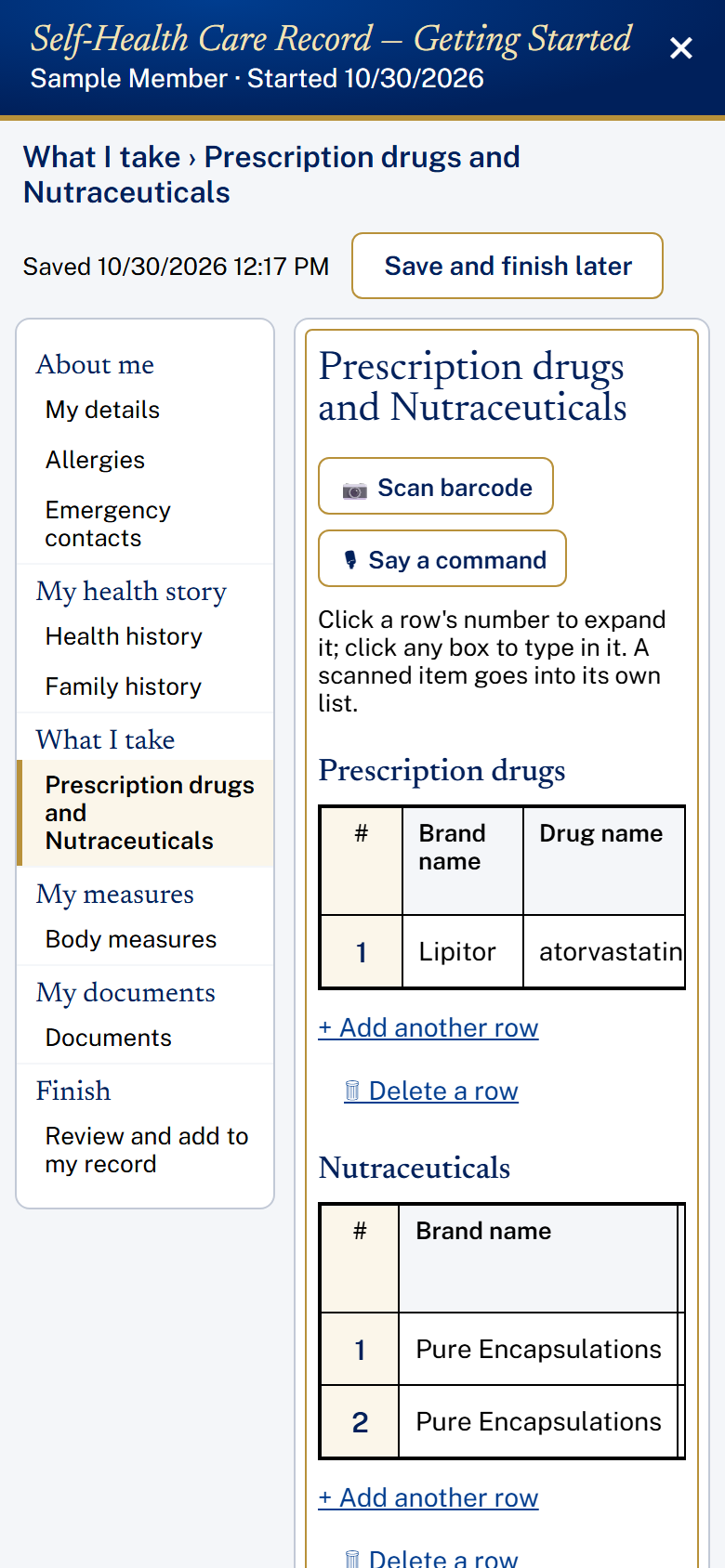
Getting Started: Prescription drugs and Nutraceuticals
- Brand name: start typing. Matching brands appear (brands listed in the National Institutes of Health (NIH) Dietary Supplement Label Database). Choose one, and Nutra/Med name then lists that brand's own products.
- Nutra/Med name: start typing. Supplements (from the NIH database) and medications (from the National Library of Medicine) appear. Choosing one fills in the name, form, strength, serving and route.
- Scan barcode: point the camera at the barcode on the bottle or its carton. If the product is in those lists, the first empty row fills in. Amazon's warehouse sticker (a code starting with X00) is not the maker's barcode.
- Photo of label: take a photo of the Supplement Facts panel, or choose a screenshot of a store's label picture. The photo is read by artificial intelligence (AI), Anthropic's Claude, for OptimizeMe, and the row fills in. Look the row over afterward and correct anything.
- Delete a row: tap Delete a row under the table, choose the row, and tap Delete.
- Say a command (computers and Android phones): tap Say a command and say "expand row 1", "close row 1" or "add another".
7. Locking your record
Tap My account (the round letter at the top right of Home), then Lock my record. (On Silver and up, the same choices are also on page 2 of My Record Book.) Choose how your record opens:
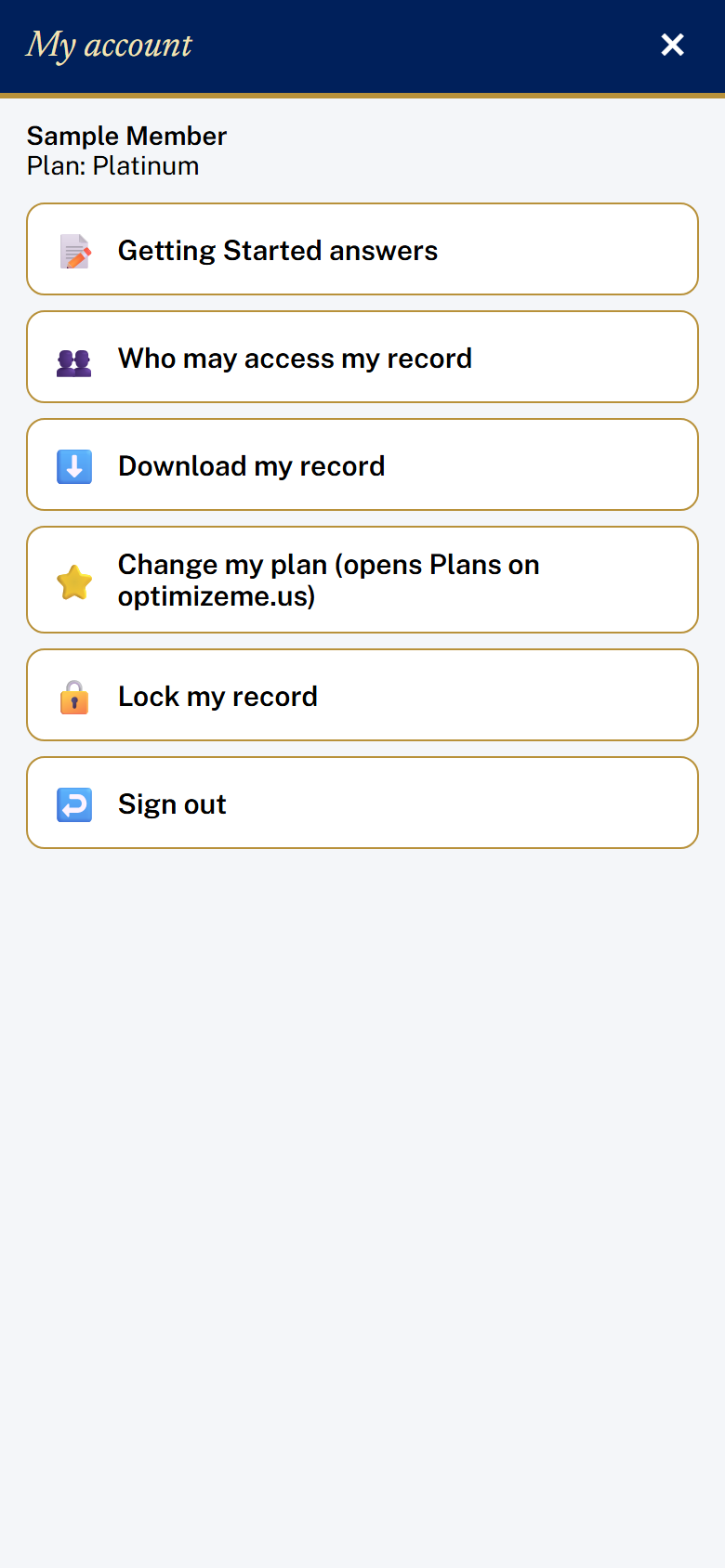
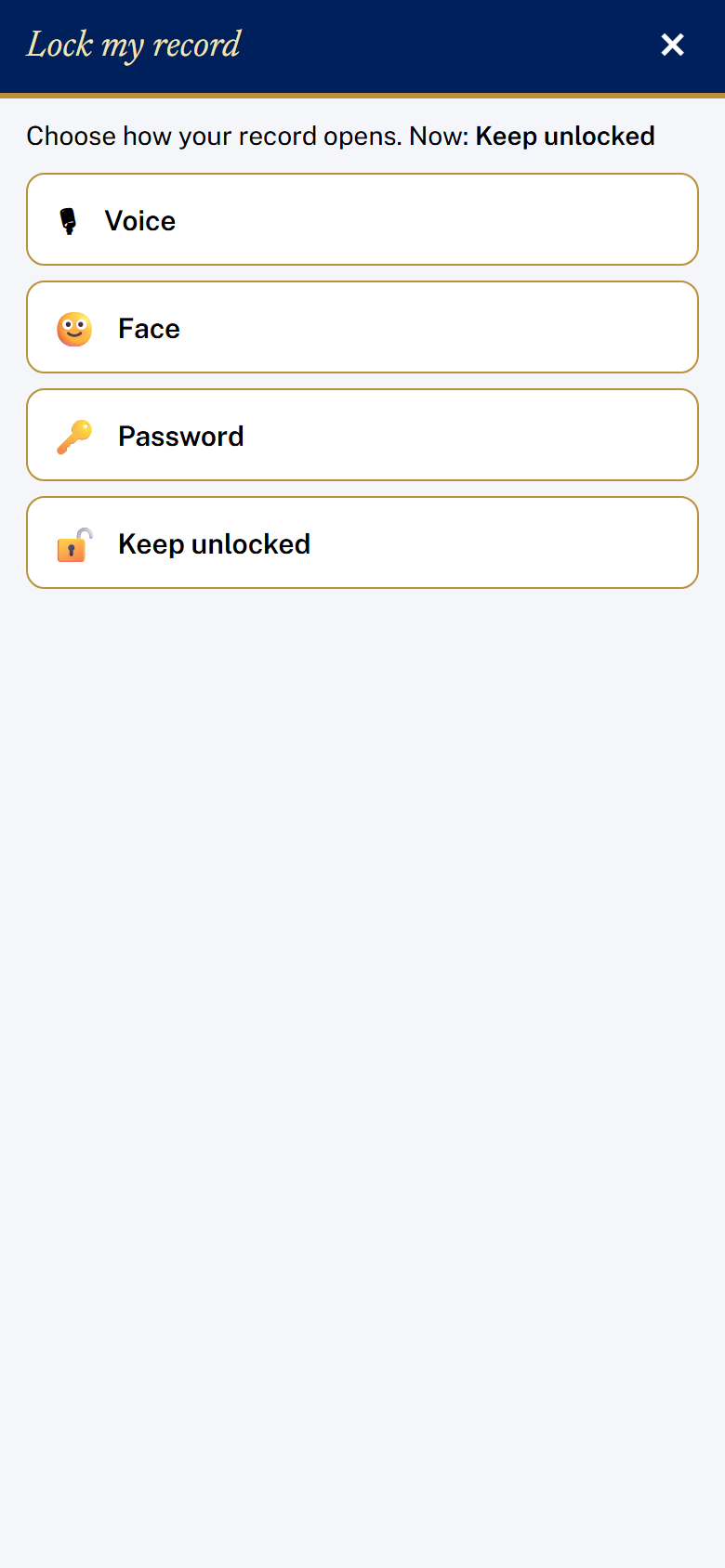
My account, and Lock my record
- Password: choose one (at least 4 characters) and type it twice. Then save the recovery code it shows, by writing it down or taking a screenshot.
- Face: your phone's Face ID or Touch ID.
- Voice: a spoken password. Tap the microphone on your keyboard and say your phrase.
- Keep unlocked.
After that, the record asks for it each time the app is opened, and locks again when you tap X or swipe the app away.
Forgot your password? Tap Forgot password? on the lock screen and type your recovery code. Then choose a new password and save the new recovery code. Without the password or the recovery code, the lock cannot be opened.
8. Adding entries
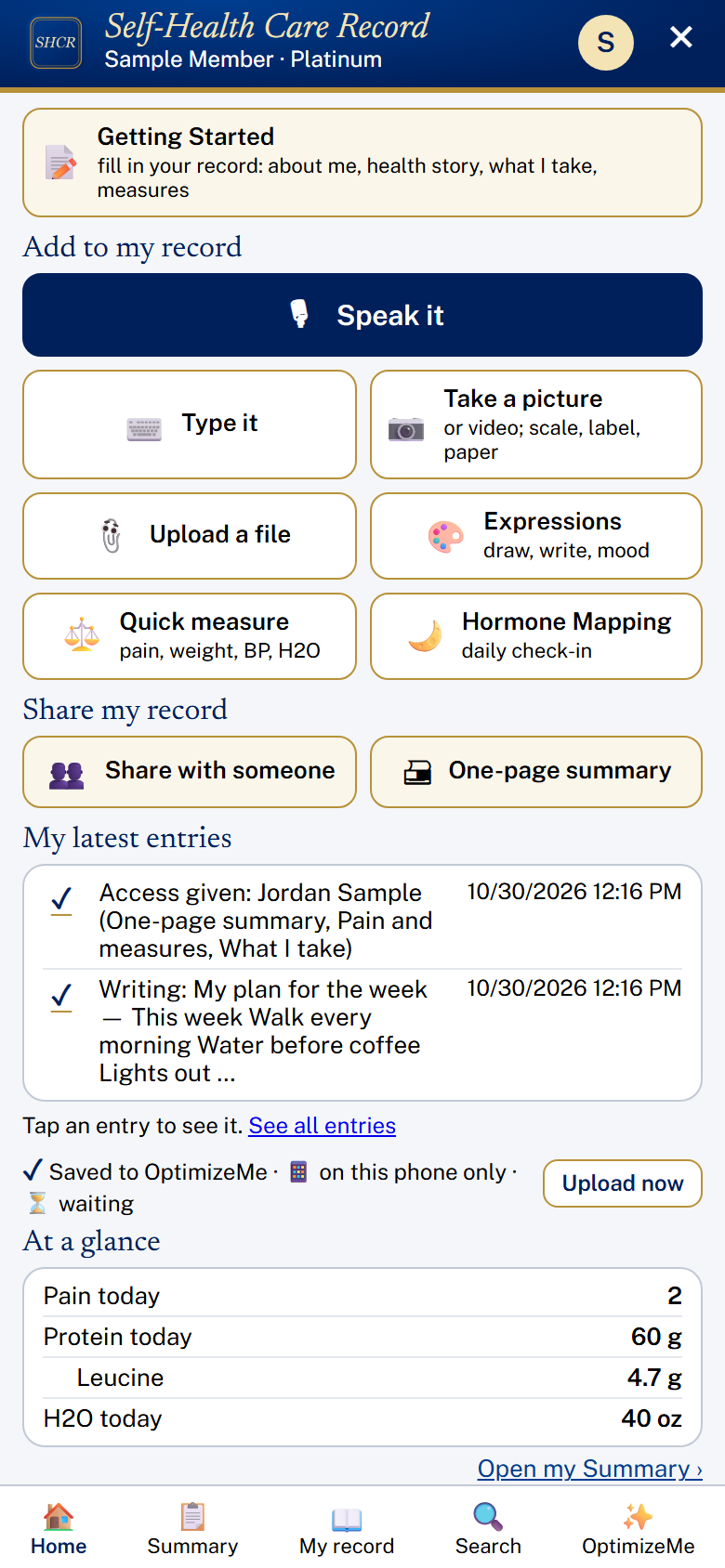
The Home screen
Speak it: tap Speak it. A text box opens. On an iPhone, tap the microphone key on the keyboard and speak. Then tap Add to my record.
Type it: tap Type it, type in the box, then tap Add to my record. Cancel closes the box without saving.
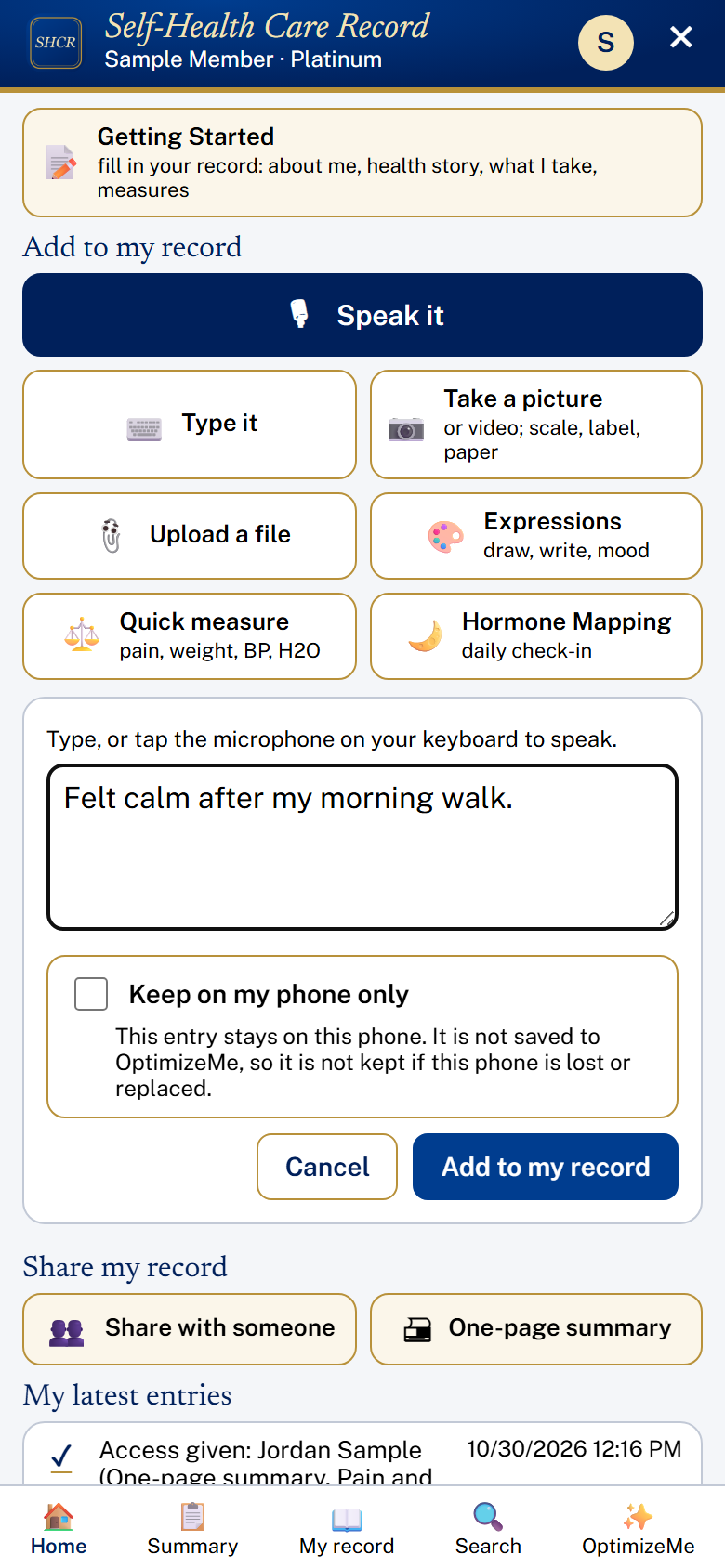
Type it
Quick measure: tap Quick measure. Tap a pain number from 0 (no pain) to 10 (worst pain), and fill in any of Weight (pounds), Blood Pressure (top number / bottom number), H2O (oz), Protein (g) and Leucine (g). Fill in only what you measured, then tap Add to my record. H2O, Protein and Leucine add up to a daily total.
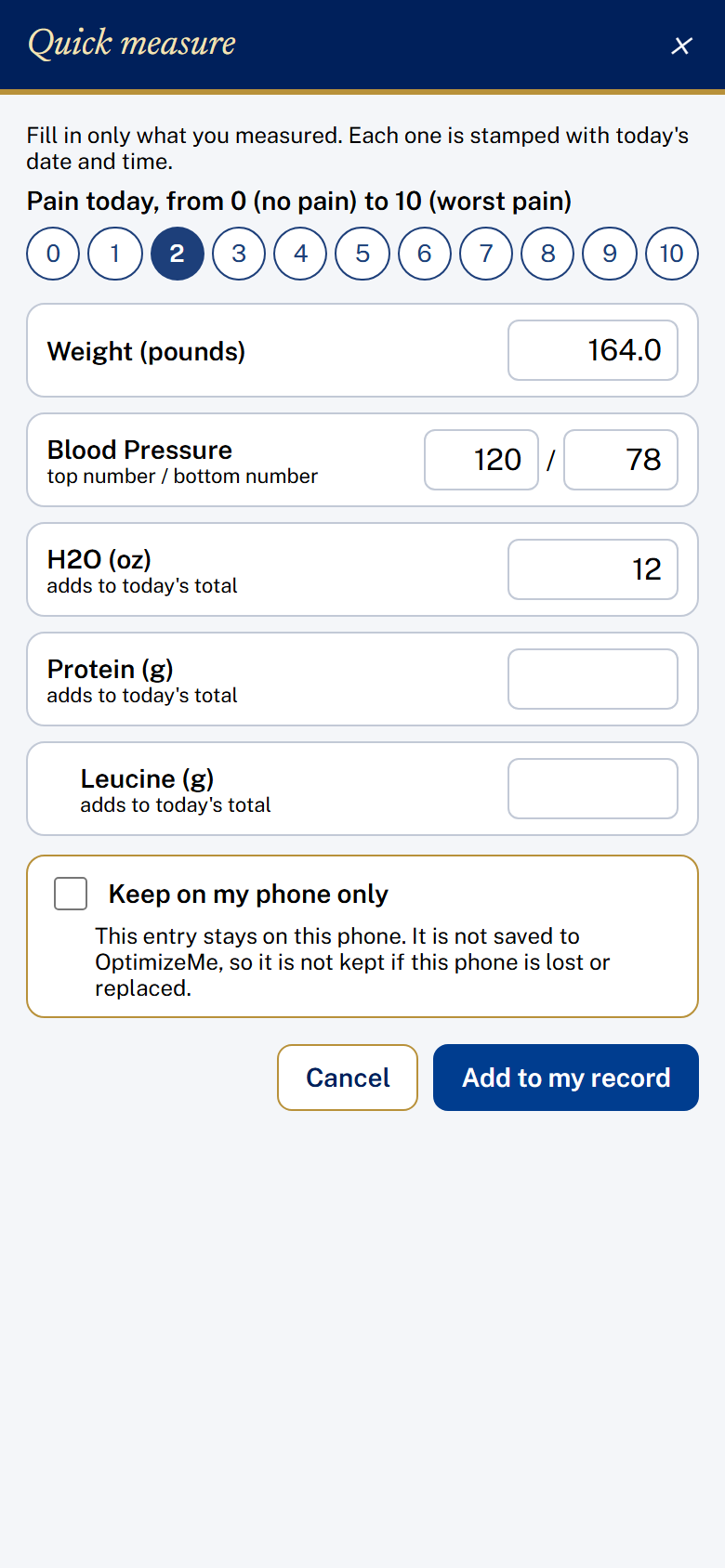
Quick measure, with Keep on my phone only
Under each Add to my record is a Keep on my phone only box. An entry with it ticked stays on this phone and is not saved to OptimizeMe.
Hormone Mapping (Silver and up): tap Hormone Mapping on the Home screen. The first time, choose which check-in fits you: Female or Male. At the top, choose the day: today, or up to 7 days back. Same as yesterday copies yesterday's answers; temperature and counts are not copied. Tap a button to choose an answer; the chosen button turns blue. Then tap Save today. Saving the same day again updates it.
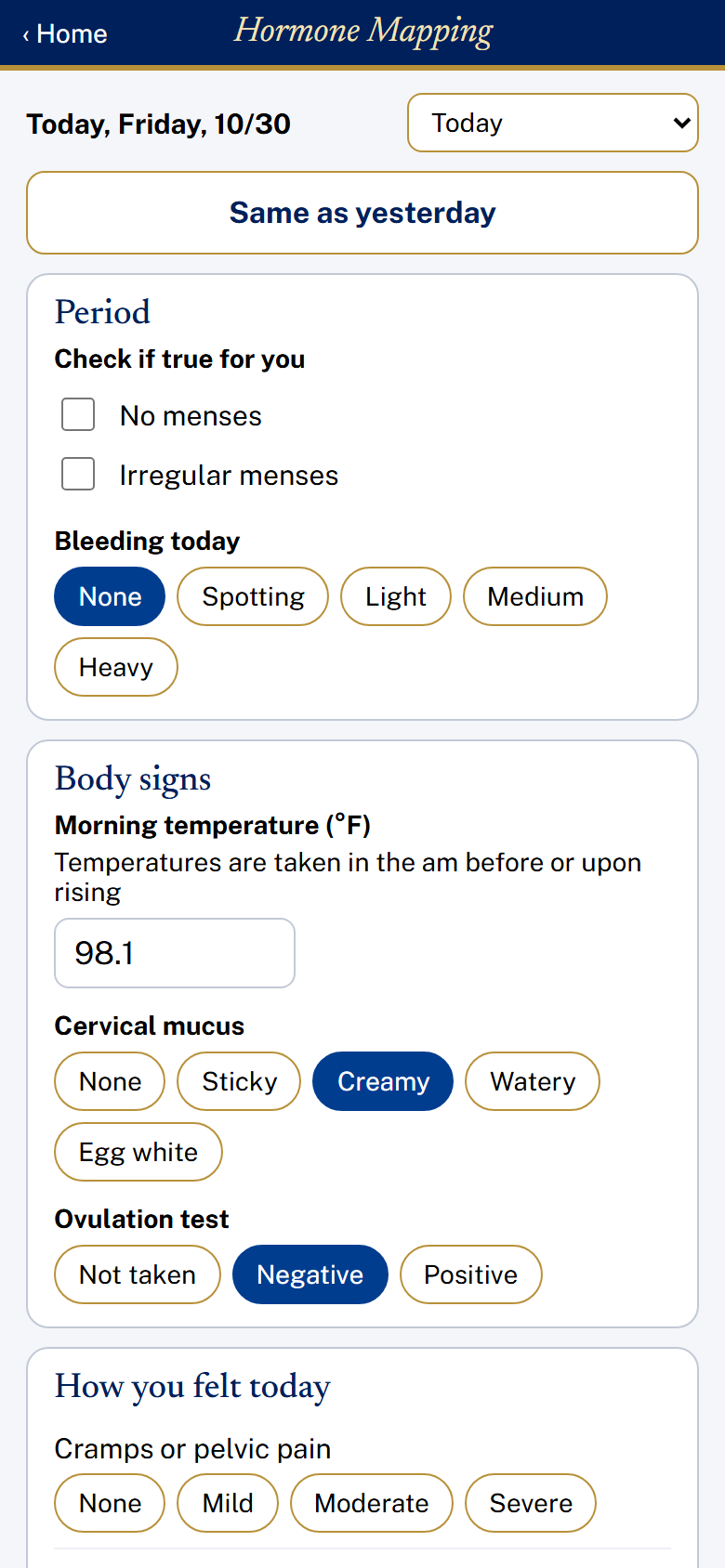
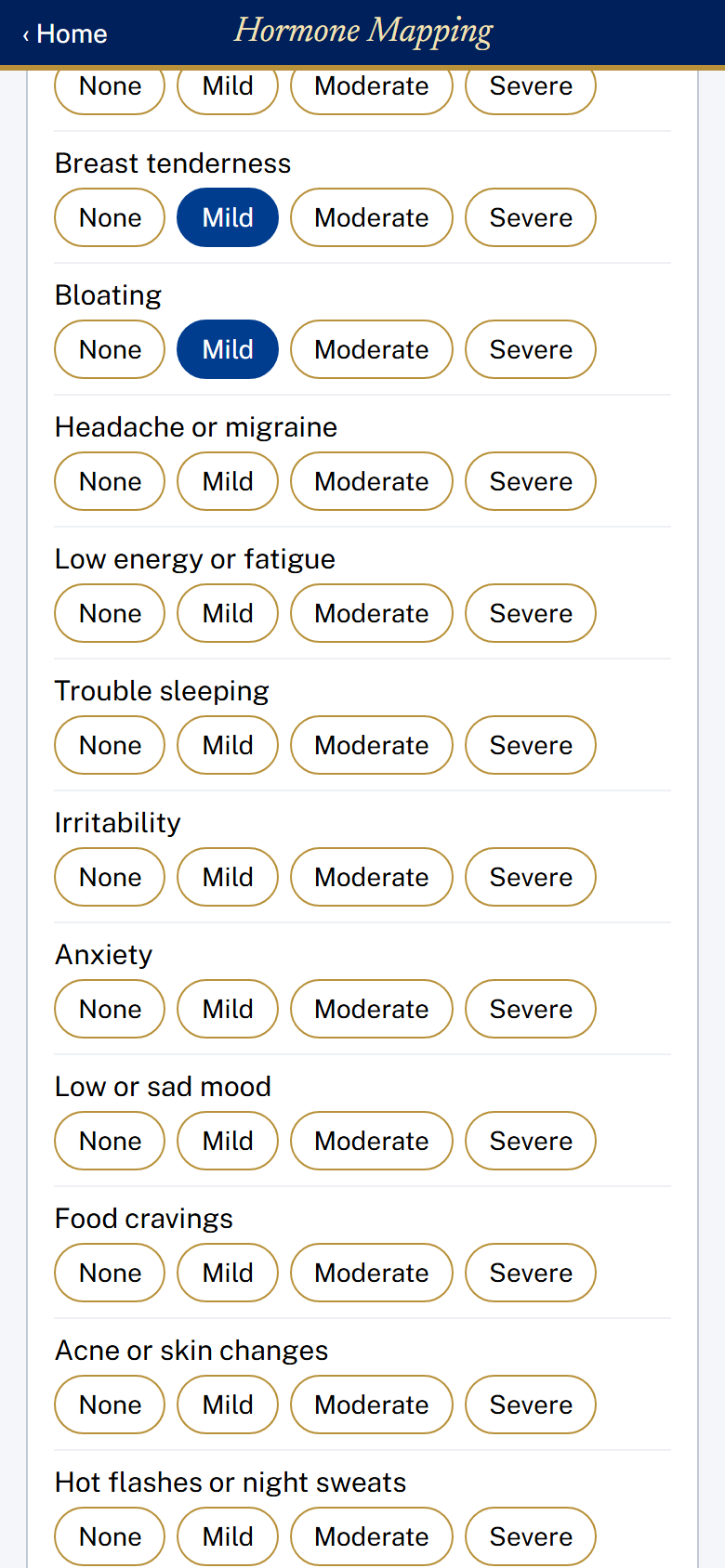
Hormone Mapping: the female check-in, and How you felt today
The female check-in has Period (No menses, Irregular menses, and Bleeding today), Body signs (Morning temperature, taken in the am before or upon rising; Cervical mucus; and Ovulation test) and How you felt today. The male check-in has How you felt today and Since yesterday: Number of ejaculations and Number of ejaculations during the night.
Your check-ins show on the Summary, and in My Record Book under My measures, as a cycle map, a morning temperature graph and a symptom map. Choose Last 2 weeks, Last 4 weeks, Last 3 months or All.
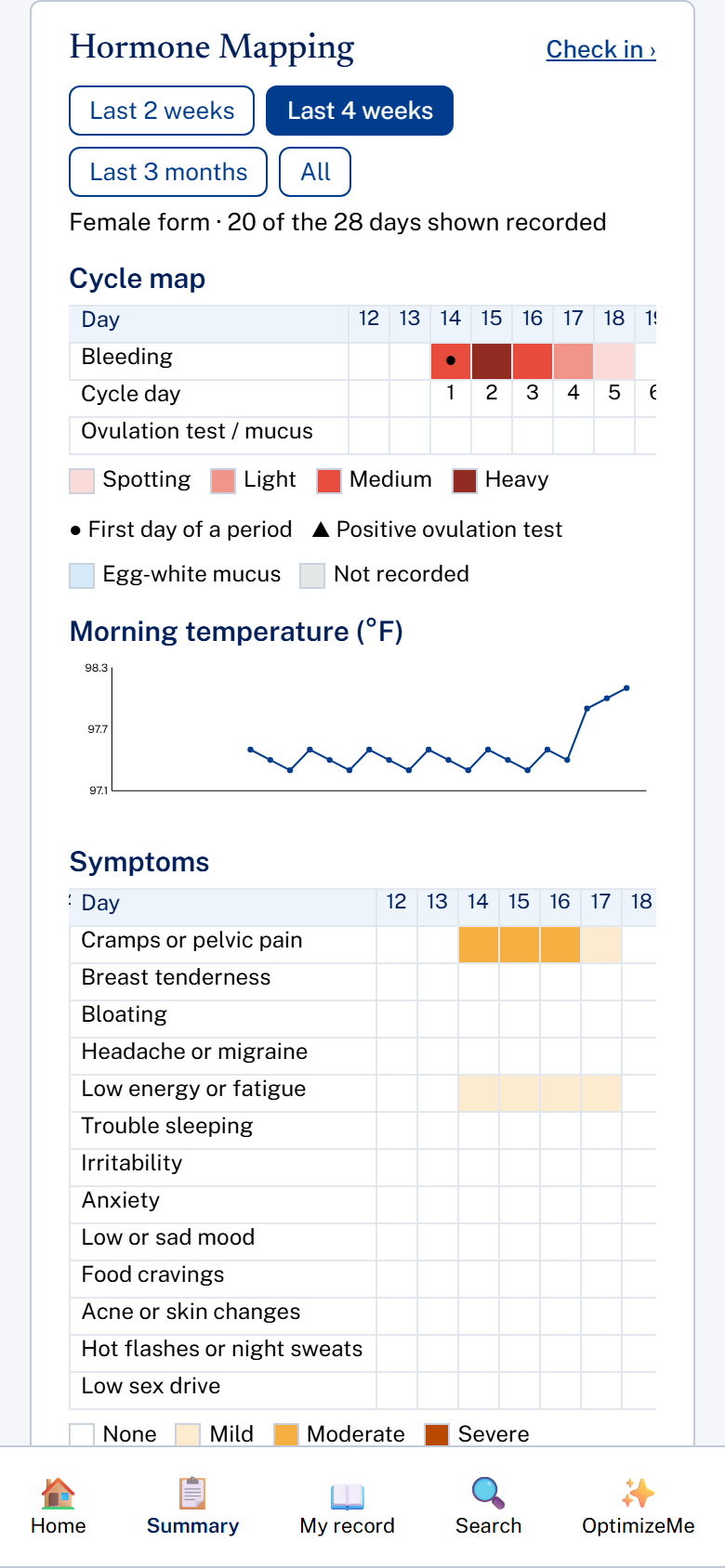
Hormone Mapping on the Summary
NOTE: Males have hormones too. Using the symptoms checklist is a simple and convenient way for males to monitor and identify any cyclical pattern in these symptoms.
9. Pictures, labels and video
Scale screen (Renpho models): tap Take a picture, choose Scale screen (Renpho), then Take picture or Choose from Photos. The phone reads the 13 Renpho measures and each Renpho Category. Look them over, correct any, answer "Are the measures shown correct?", then tap Add to my record.
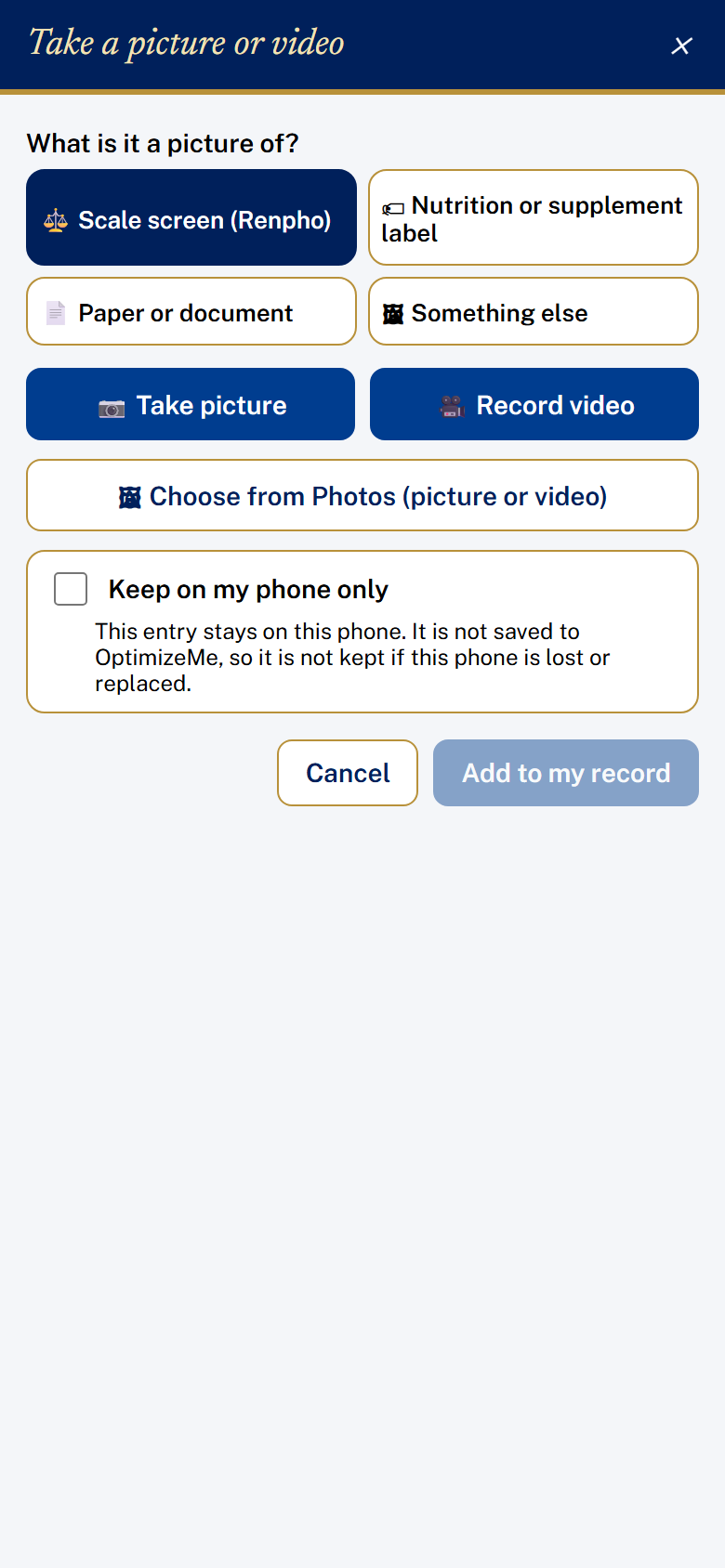
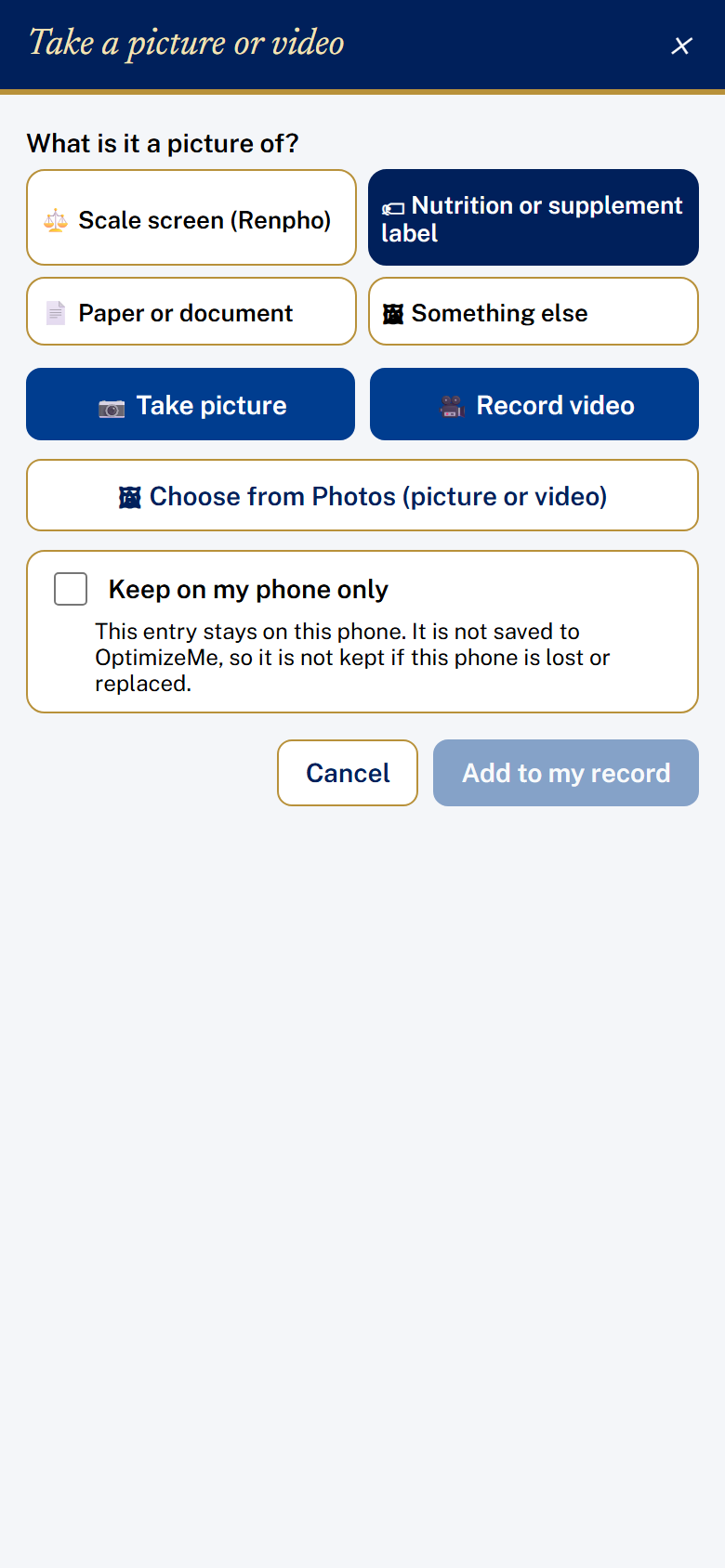
Take a picture: Scale screen (Renpho), and Nutrition or supplement label
Nutrition or supplement label: tap Take a picture, choose Nutrition or supplement label, and photograph the label held flat and straight-on. The phone reads the serving size and nutrients. Add the product name, correct any amounts, and, if you like, enter Servings I had: the label's Protein and Leucine times that number are added to today's totals. Then tap Add to my record.
Paper, document or something else: tap Take a picture, choose Paper or document or Something else, take or choose the picture, add an optional note, and tap Add to my record.
Video: tap Take a picture, then Record video (or Choose from Photos and pick a video), up to 25 MB. The whole video is added to your record. Add an optional note and tap Add to my record.
10. Uploading a file
Tap Upload a file on the Home screen, then Choose a file: any kind (PDF, Word, pictures, audio or video) from Files, Photos or iCloud Drive, up to 25 MB. Fill in the details: Title, Document date, From, Kind (Lab report, Imaging, Letter, Photo, Recording, Other) and Notes. Tap Add to my record.
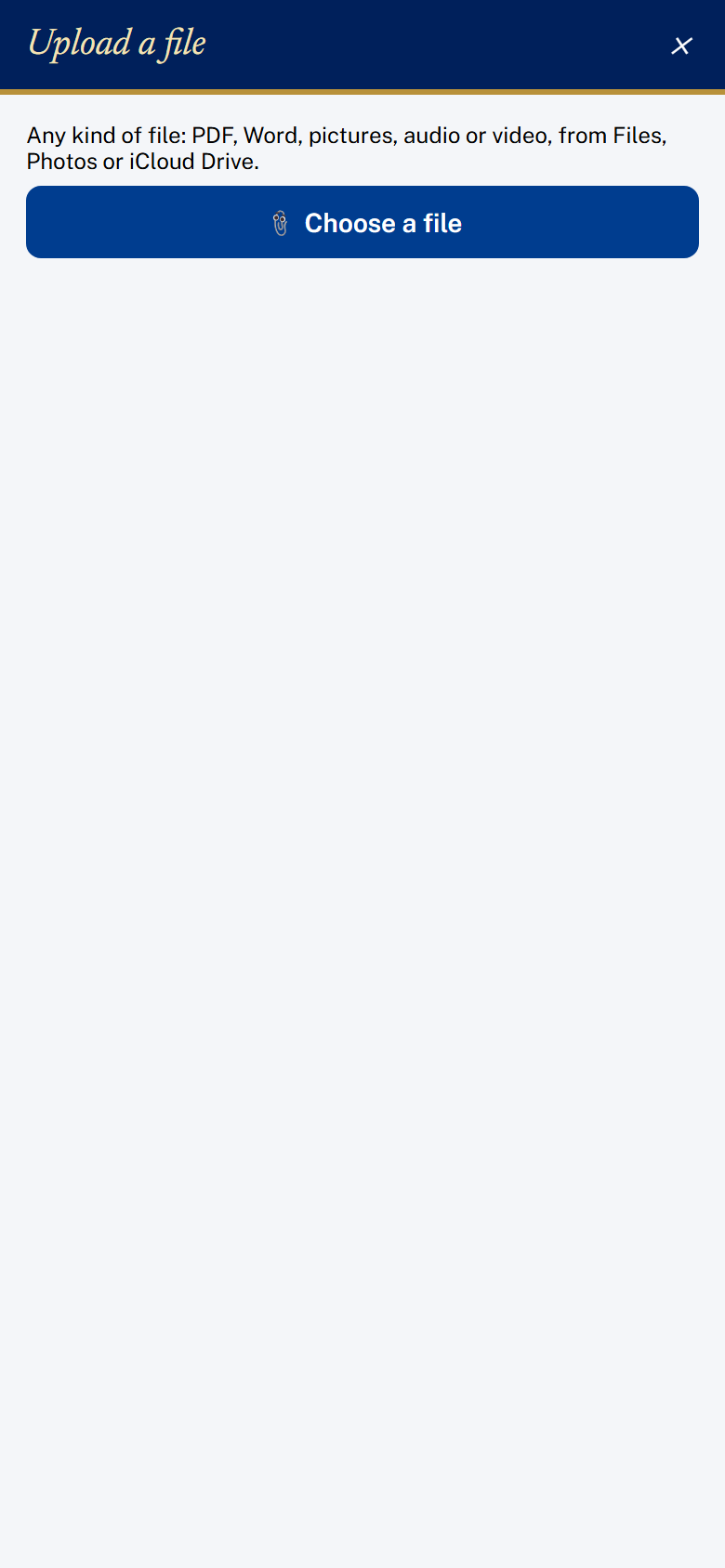
Upload a file
Tap the entry later to see its details and tap Open the file. Uploaded files also appear on the Summary under My documents.
11. Expressions
Tap Expressions on the Home screen. The row of choices (Draw, Voice, Write, Mood, Positive Events, Negative Events) slides sideways: tap the arrowhead at its edge, or swipe it, to see the rest.
Draw: choose a tool (pencil, pen, marker or eraser), a size and a color, then draw with a finger or an Apple Pencil. Steadying (the slider) smooths out wobble. Two fingers zoom in; tap Fit to go back. Undo and Redo step back and forth. Clear starts over. Add an optional title and tap Add to my record.
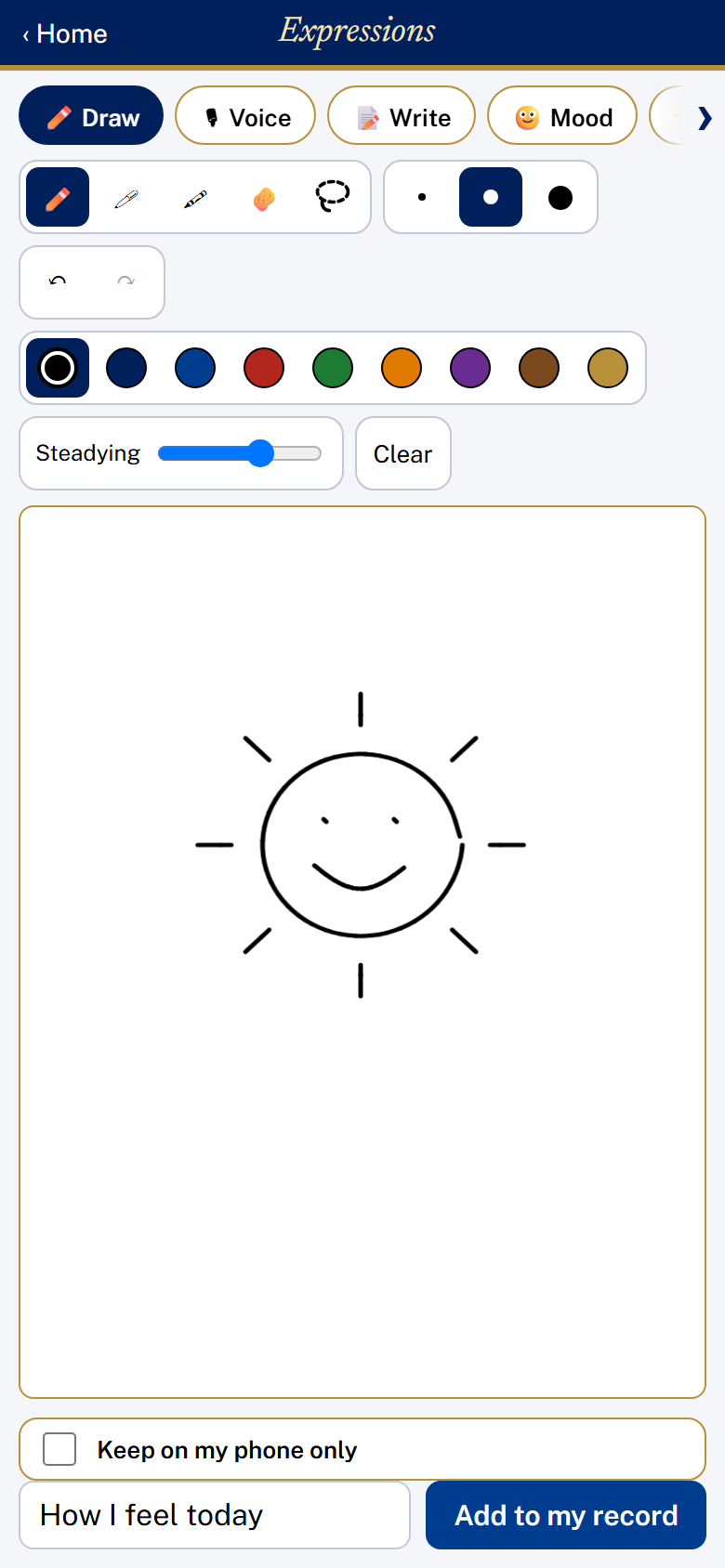
Expressions: Draw
Select and straighten: in Draw, tap the lasso (the dashed loop) and draw a loop around all or part of your drawing or handwriting. Drag inside the box to move it. The toolbar then shows Straighten, turn left or right, smaller (-) or bigger (+), Delete and Done.
Voice: tap the round red Record button and speak (the first time, allow the microphone). Tap the button again to stop (up to 5 minutes). Listen back, or tap Record again. Add an optional title and tap Add to my record.
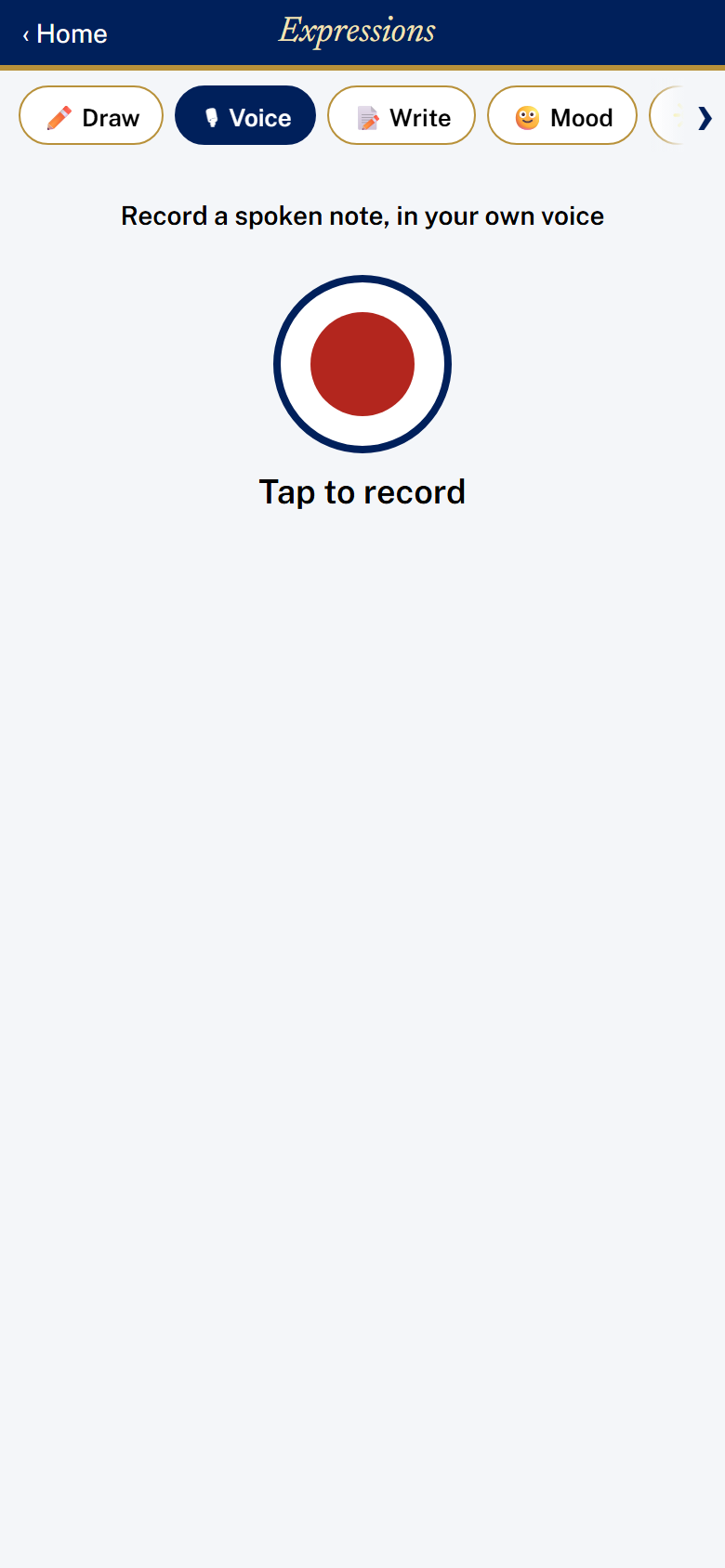
Expressions: Voice
Write: write whatever you wish, or tap the microphone on your keyboard to speak. The bar above offers Bold, Italic, Underline, text colors, a highlighter, bulleted and numbered lists, and emoticons. Add an optional title and tap Add to my record.
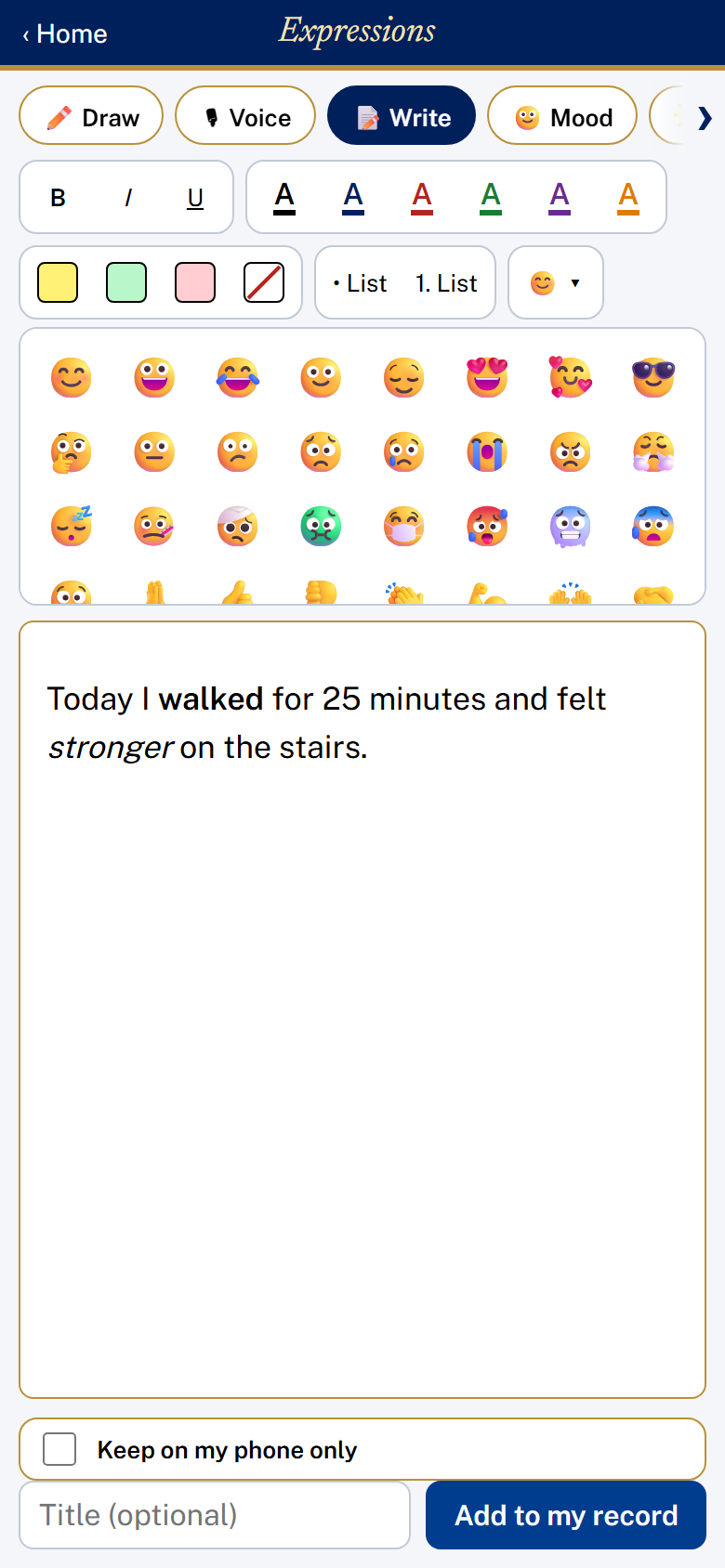
Expressions: Write
Mood: tap a circle for your mood right now, from 0 (lowest) to 10 (best), and one for your energy, from 0 (none) to 10 (full). Tap any words that fit how you feel. Add what is behind it if you wish, then tap Add to my record.
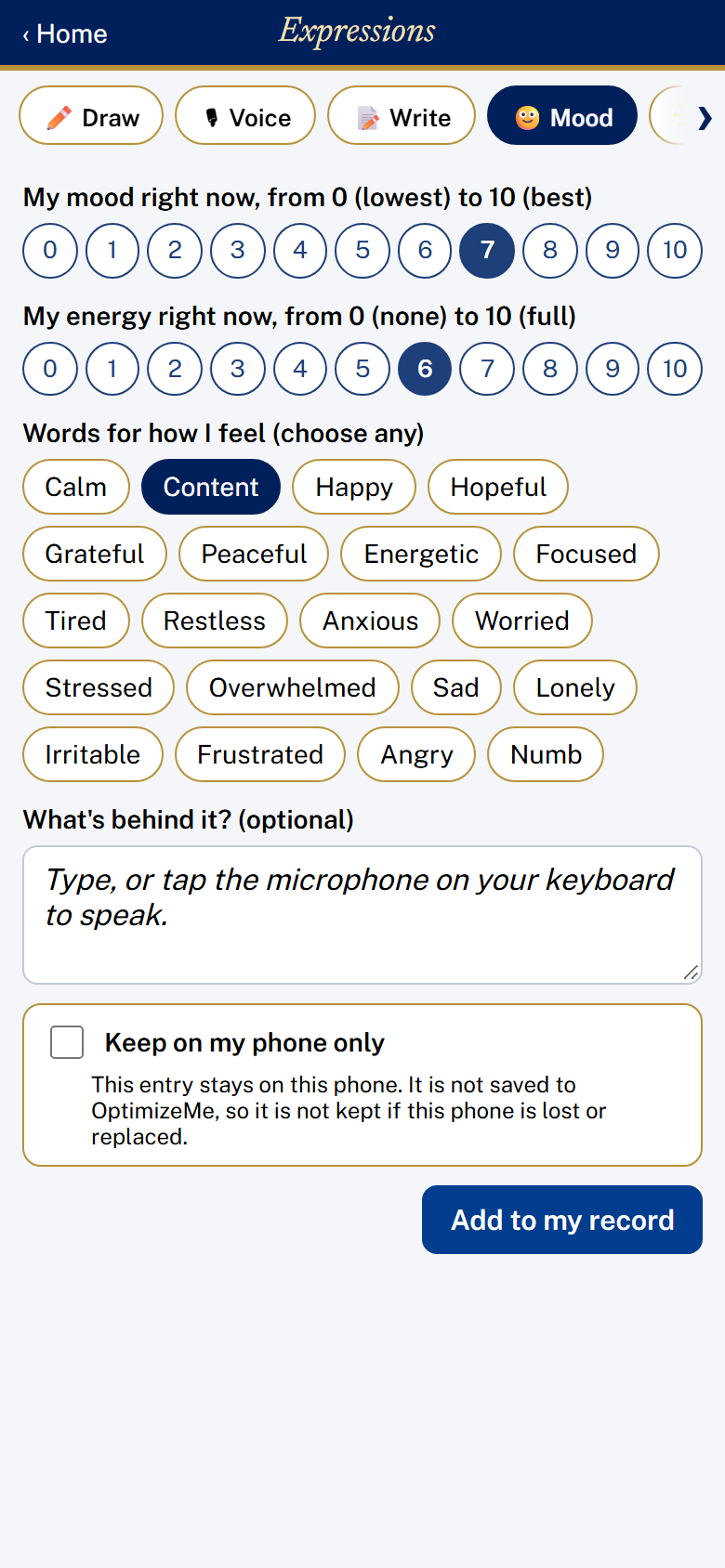
Expressions: Mood
Positive Events: under Today I am grateful for..., fill in one or more numbered lines (tap + Add another for more). Tap Add to my record. Your last five show below.
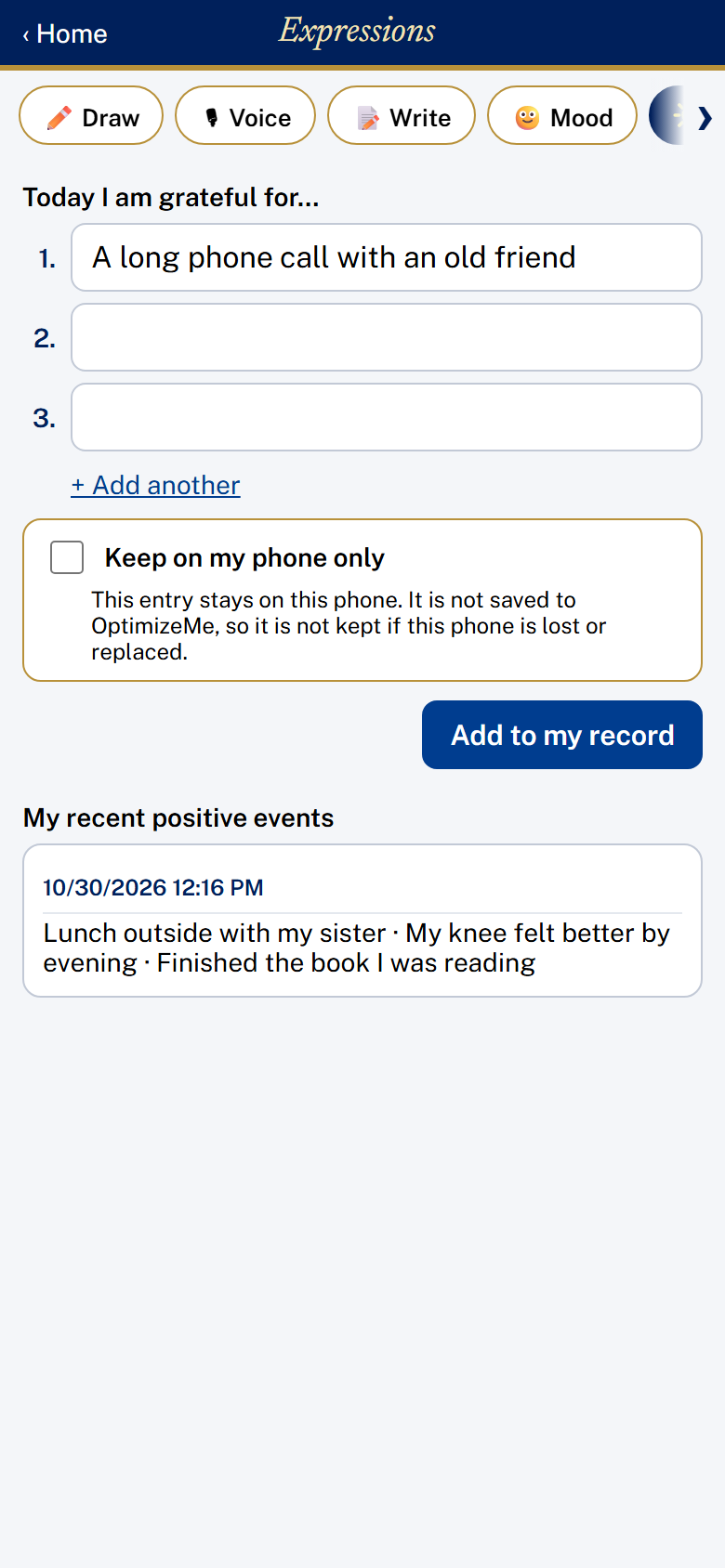
Expressions: Positive Events
Negative Events: What happened, fill in one or more numbered lines (tap + Add another for more). When starts at the current date and time; change it if the event was earlier. Tap a circle for how much it affected you, from 0 (not at all) to 10 (very much), and add how you responded or what helped if you wish. Tap Add to my record.
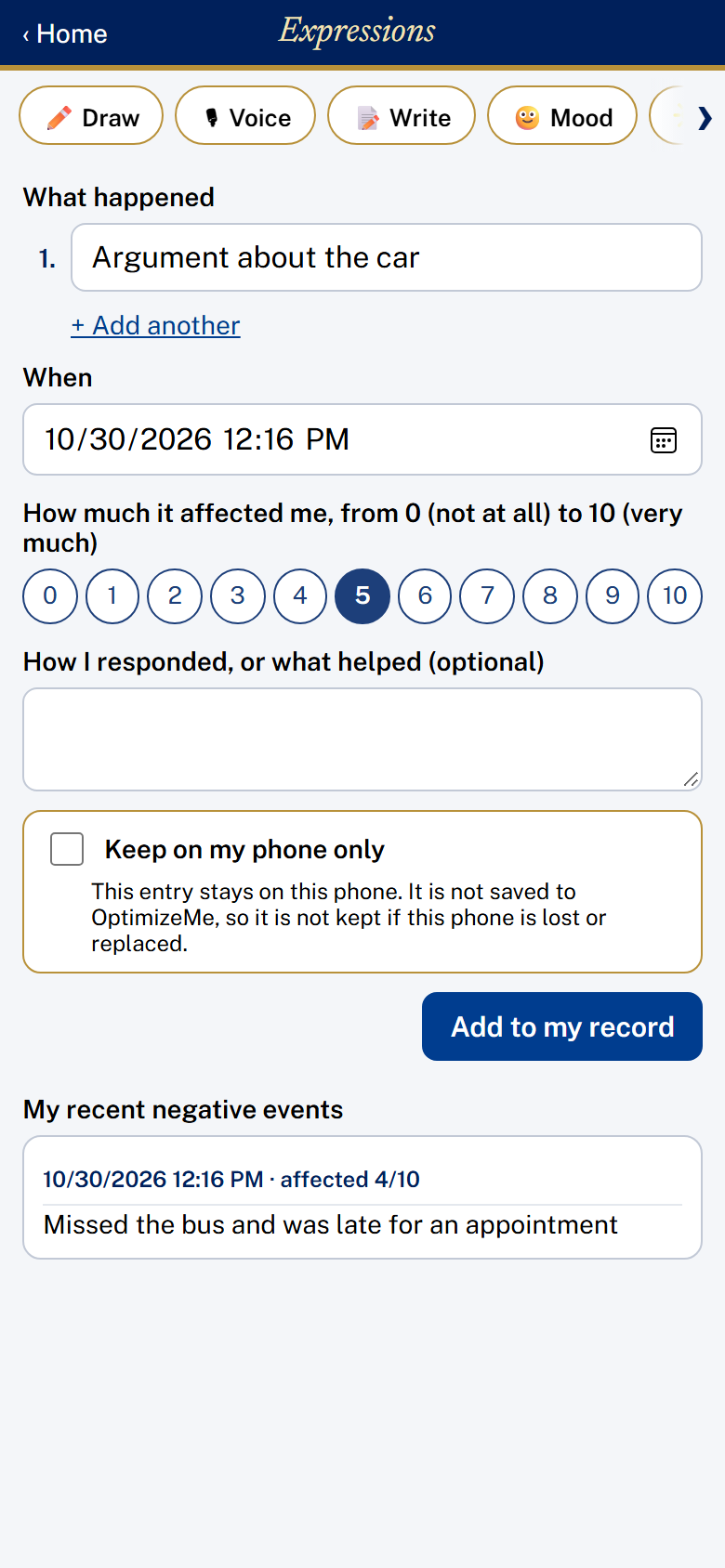
Expressions: Negative Events
12. Seeing your record
- Your latest entries show on the Home screen. Tap See all entries for the full list. Tap any entry to open it and see everything saved with it.
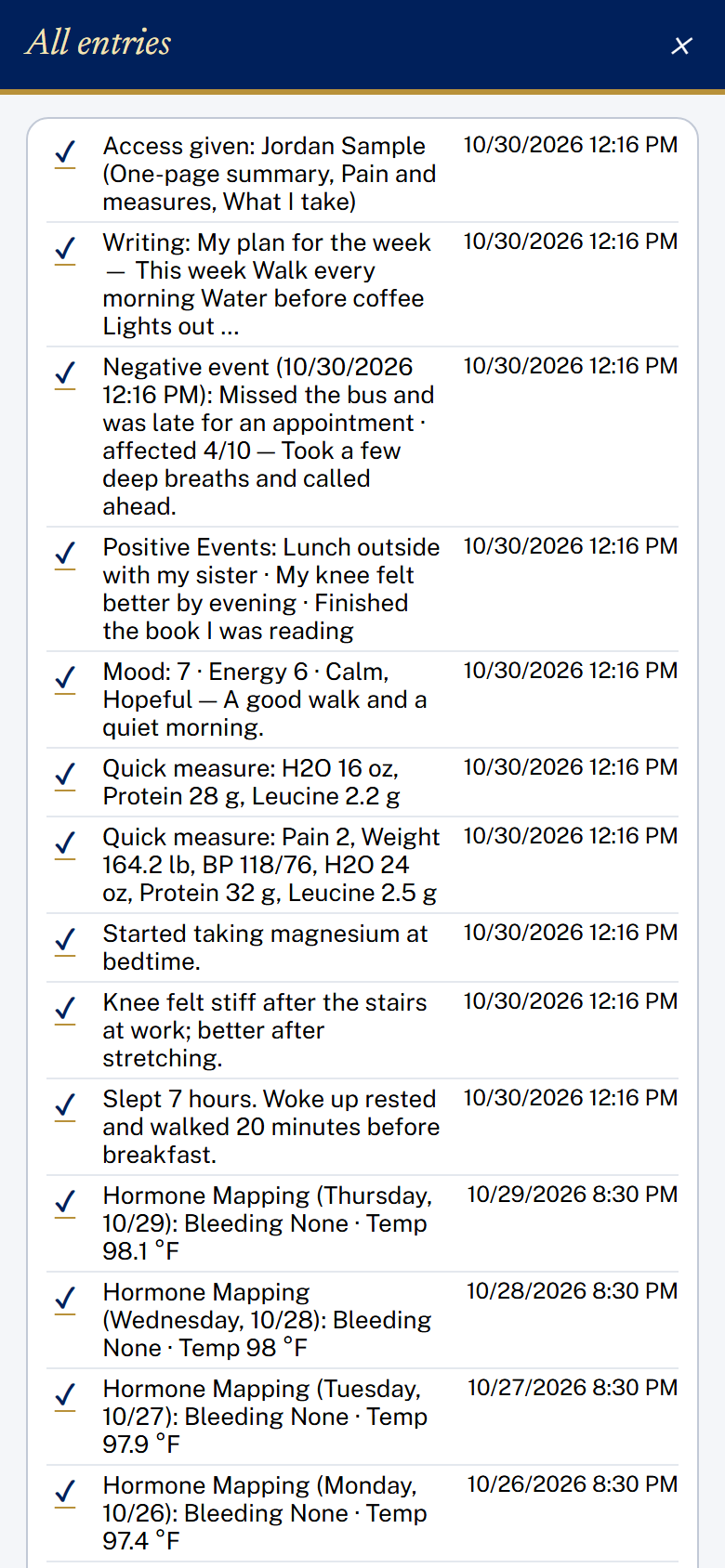
See all entries
- At a glance shows Pain today, Protein today with Leucine beneath it, and H2O today.
- Summary (at the bottom of the screen) is one page of cards filled from your record: Pain, Allergies, What I take, Macro nutrient intake, Body Measures, My health story, Family history and My documents.
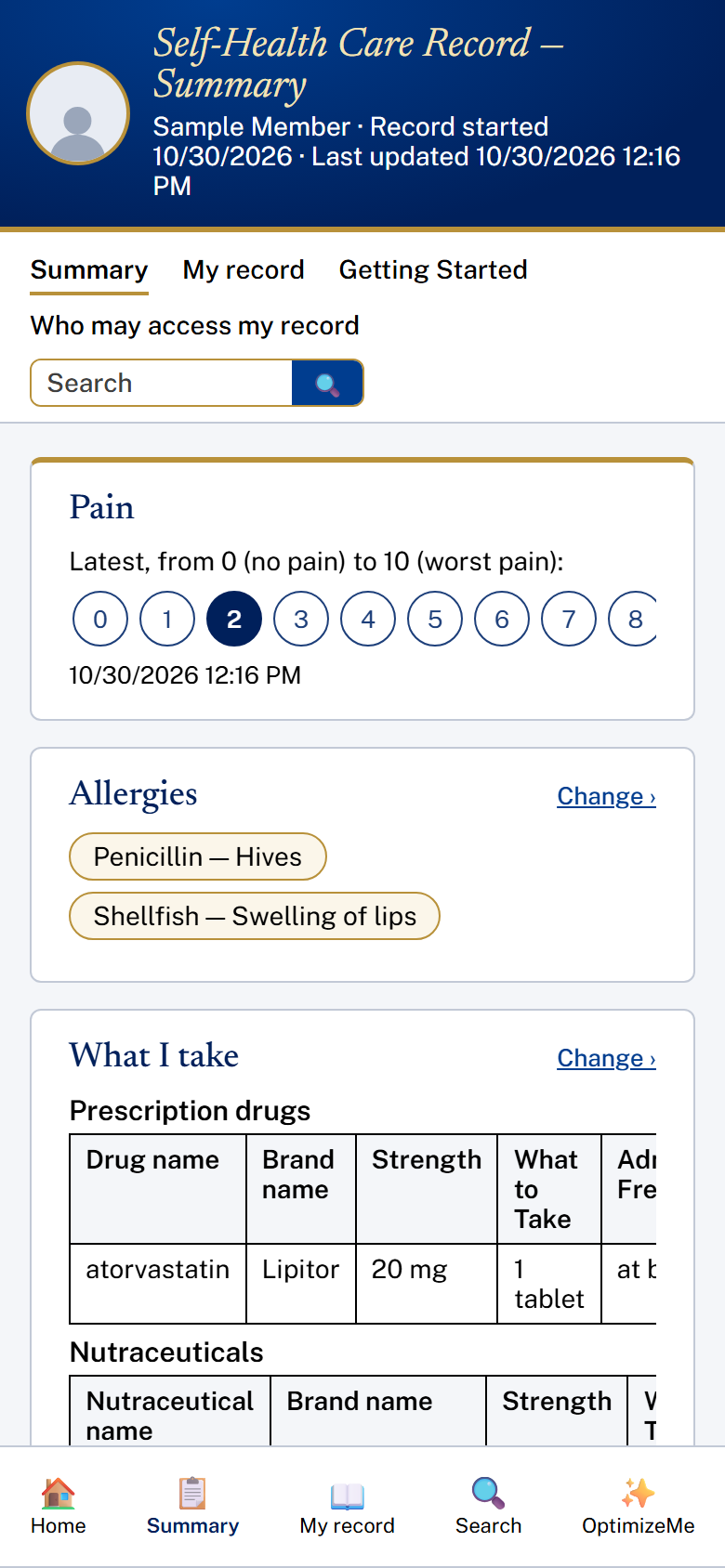
Summary
- My Record Book (at the bottom of the screen) turns page by page like a book: the cover with your photo, the Private and Confidential page, the Table of Contents (tap a section to go to it) and the section pages.
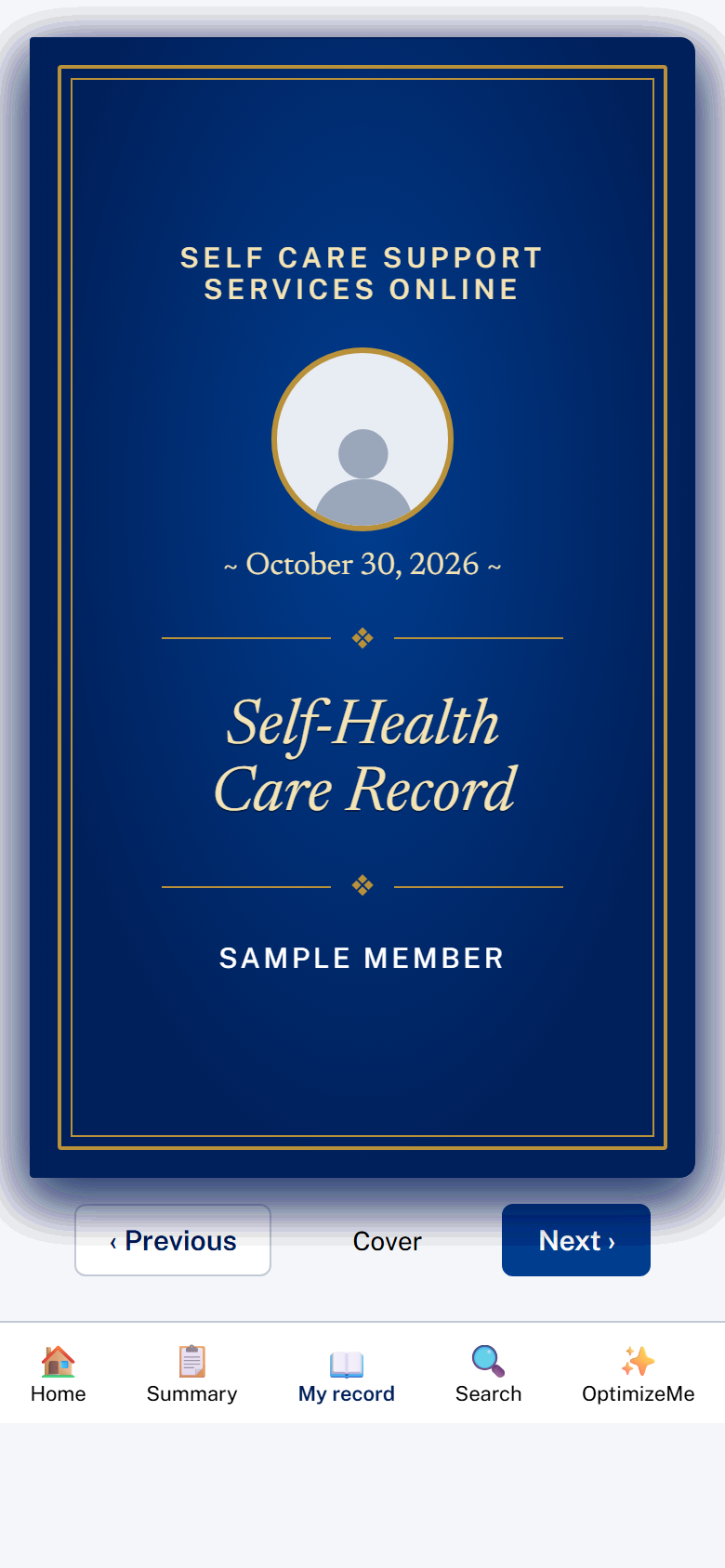
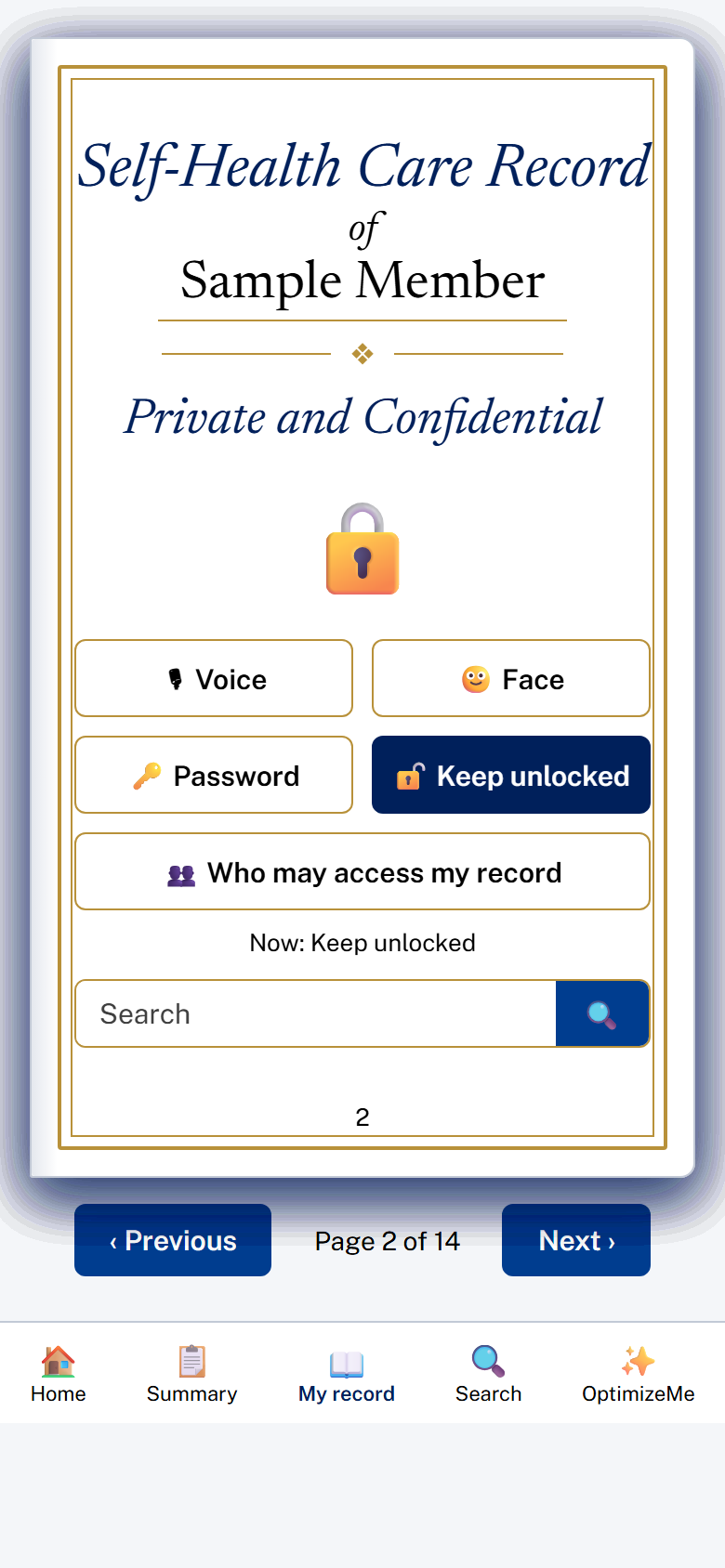
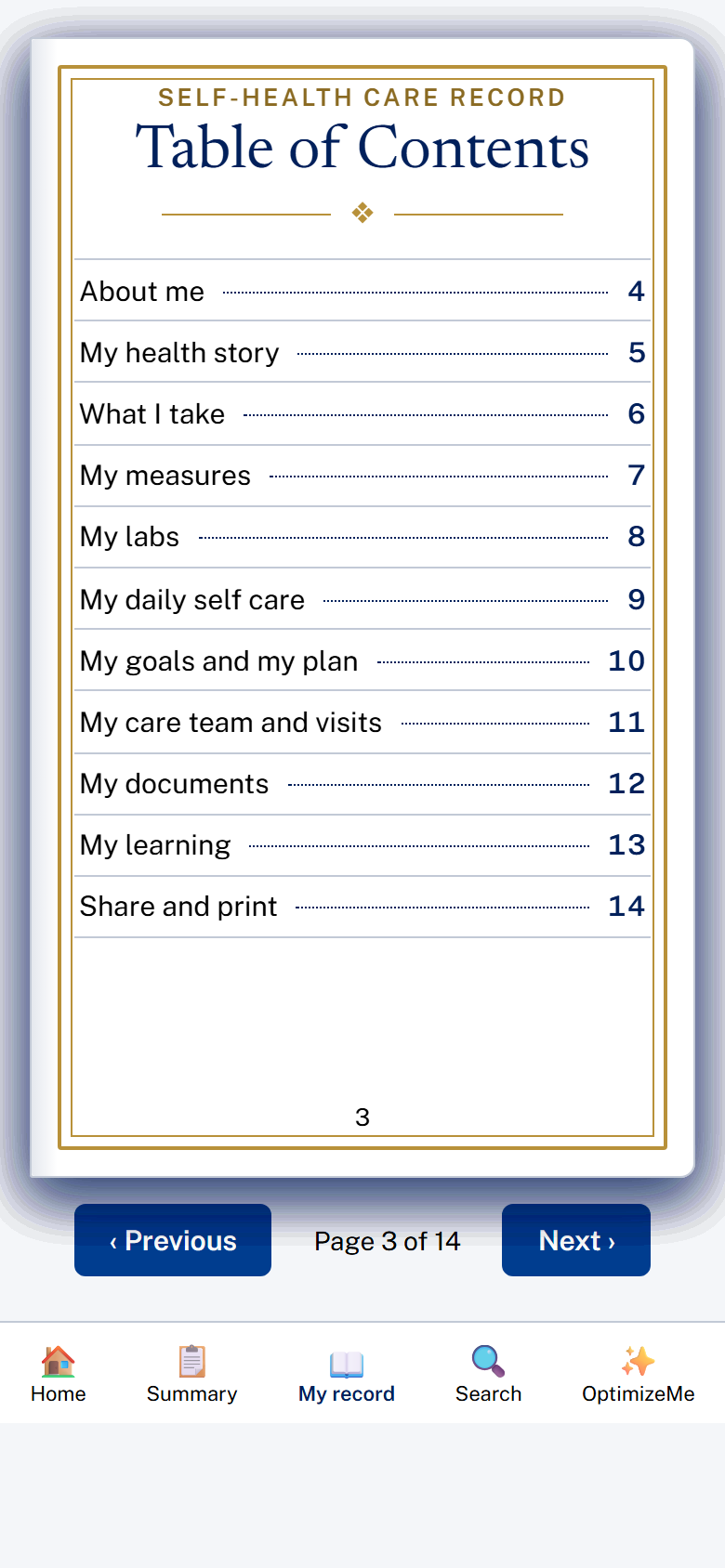
My Record Book: the cover, the Private and Confidential page, and the Table of Contents
- Search (at the bottom of the screen): type any word or words. It searches everything you have added. Matching words are highlighted in yellow, newest first. Tap a result to open it.
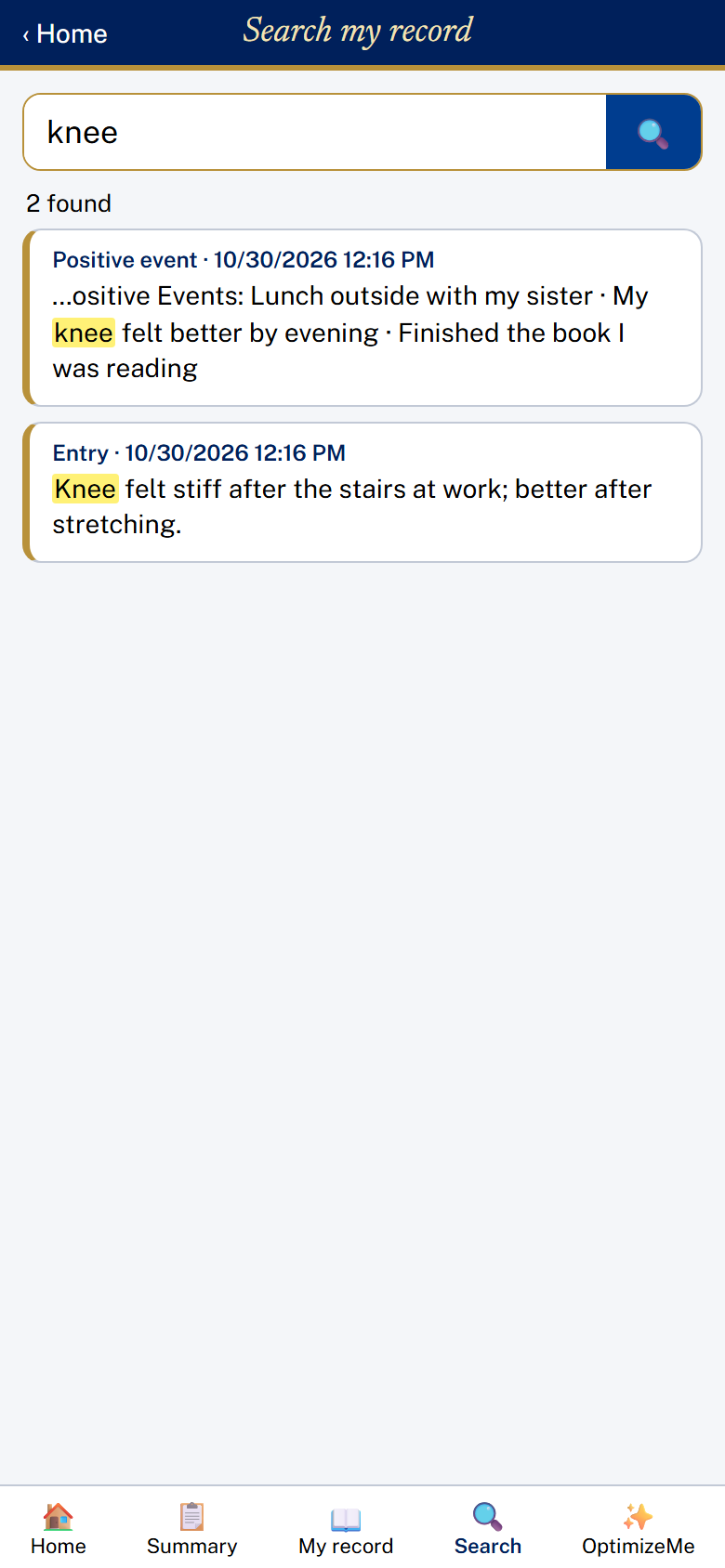
Search
13. Deleting an entry
Tap the entry to open it, scroll to the bottom, tap Delete this entry, then OK. The entry is hidden from your record, and any amounts it added to today's totals are taken off. A copy stays on OptimizeMe's website.
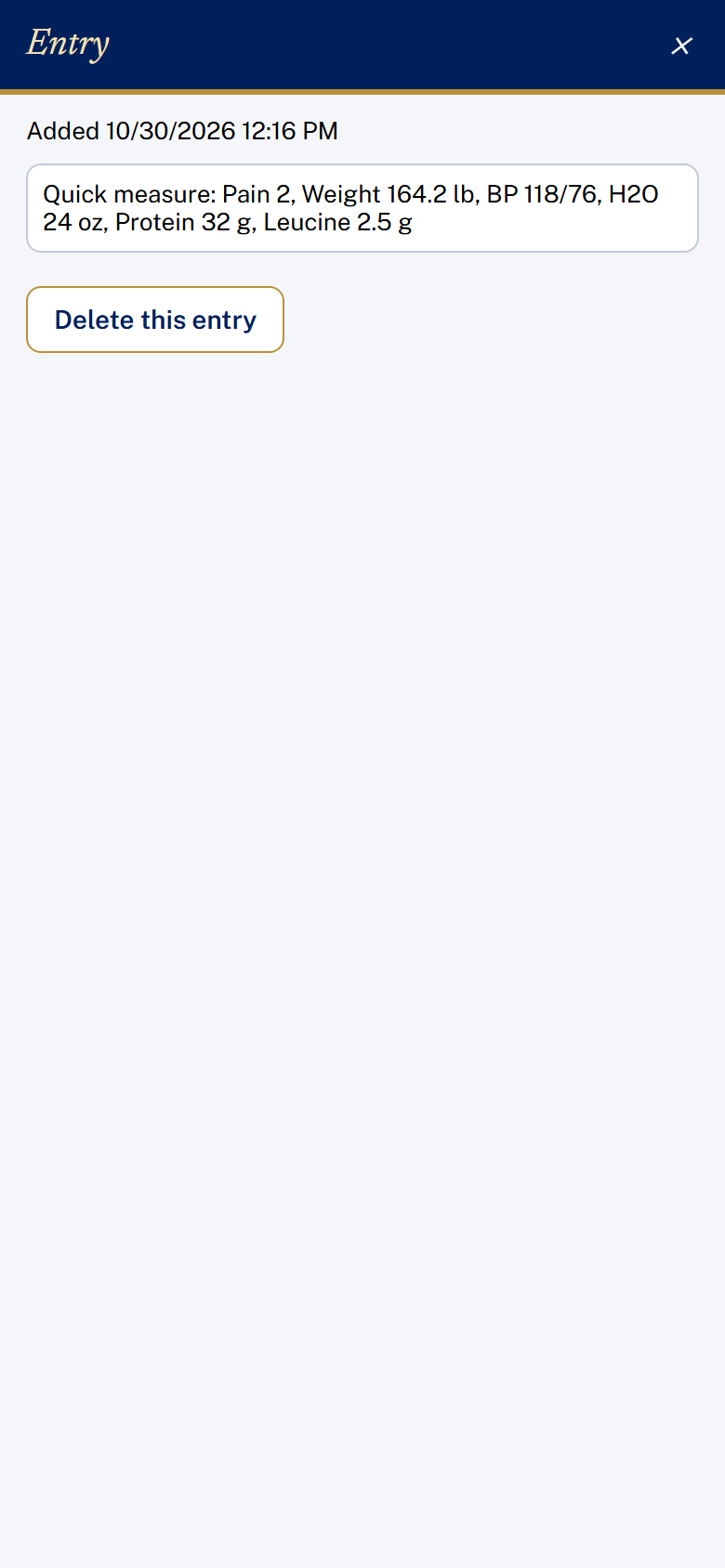
An entry, with Delete this entry
14. Sharing your record
Who may access my record: tap My account (the round letter at the top right of Home), then Who may access my record. (On Silver and up, it is also on page 2 of My Record Book.) Only the people you choose may access your record, and only the parts you approve their seeing. Tap + Add a person and enter Name, Relationship, Phone and Email; check what this person may see; and, if you wish, choose an Until date. Tap Save. You may change or remove anyone at any time.
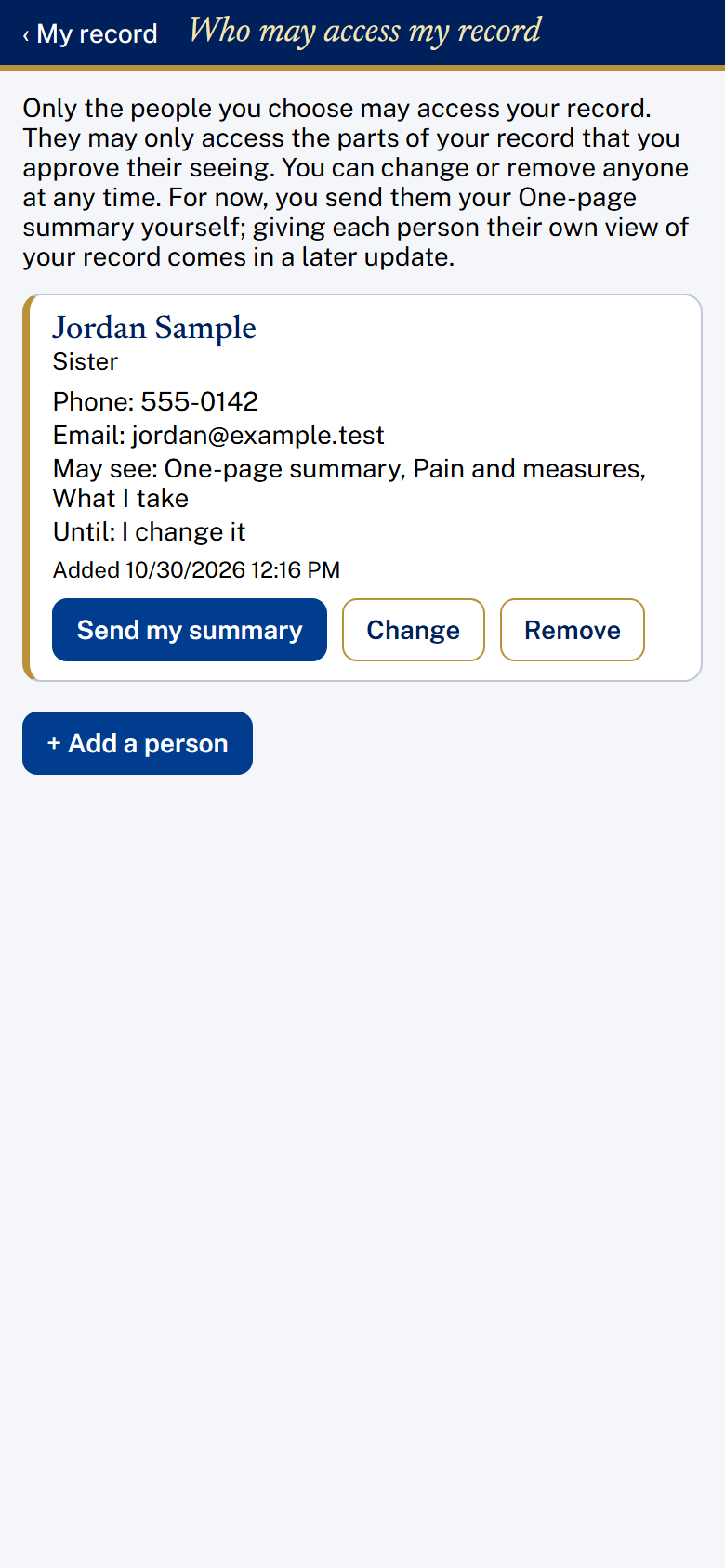
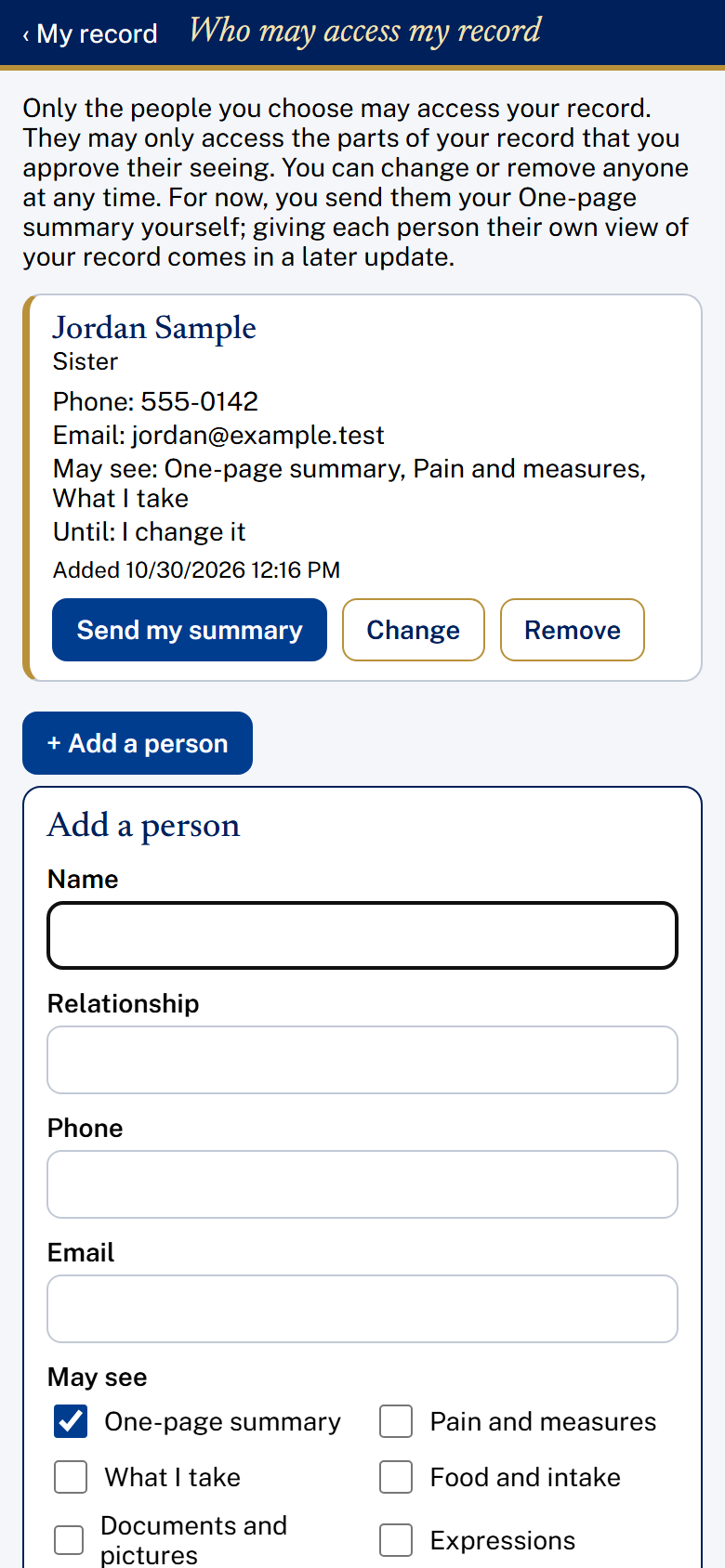
Who may access my record, and Add a person
One-page summary: tap One-page summary on the Home screen. It shows your latest pain, today's intake, latest body measures, your pictures and recent entries, all with dates. Tap Print / Save as PDF to print it or keep a copy.
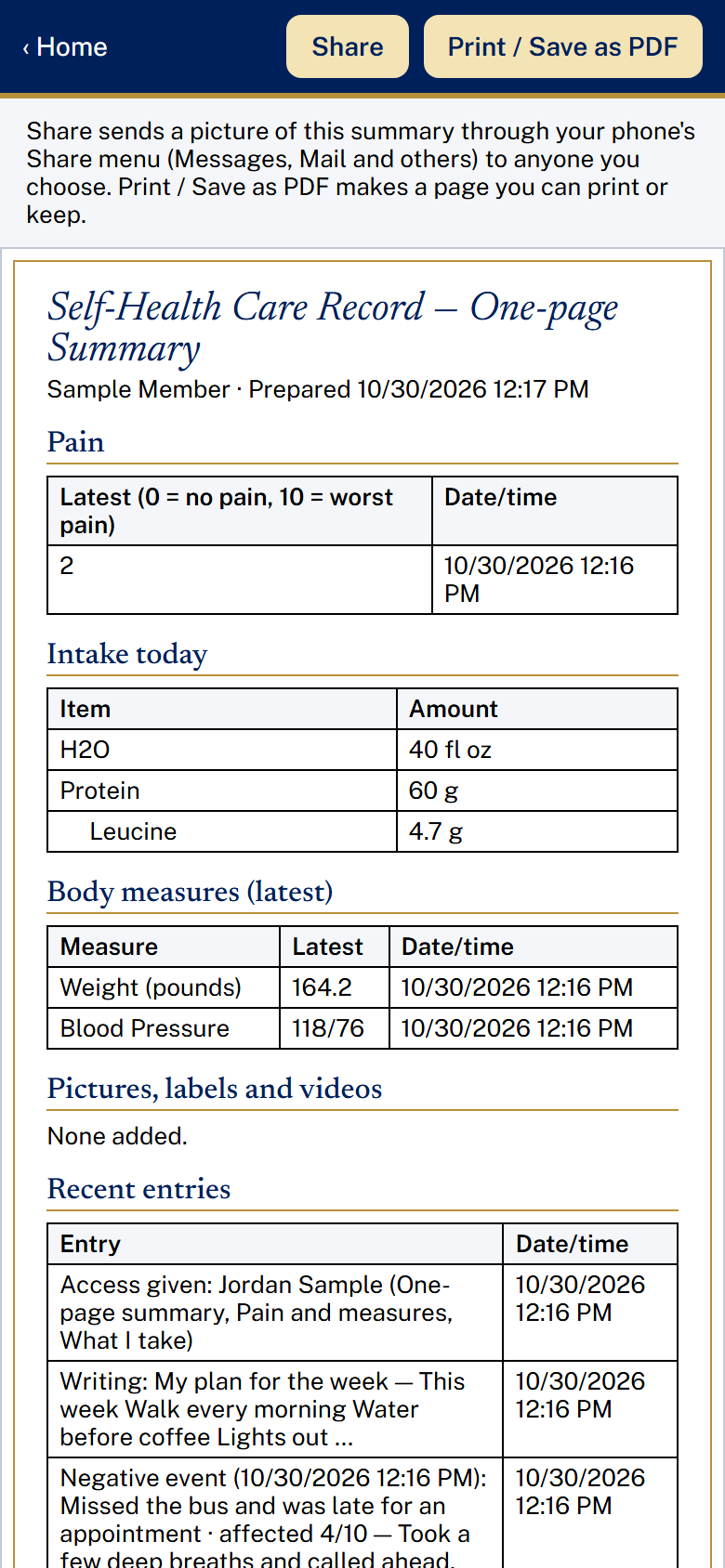
One-page summary
Share with someone: tap Share with someone on the Home screen. When the button changes from Preparing... to Share, tap it. Your phone's Share menu opens with a picture of the summary; choose Messages, Mail or another app and the person you want to send it to.
15. Your record and your privacy
This section explains how OptimizeMe stores, protects and shares your Self-Health Care Record (SHCR).
The Information in Your OptimizeMe Self-Health Care Record Belongs to you
The information in your SHCR belongs to you, the member. It is your property. You can keep the app connected to the website for the open flow of information as you choose.
The self-health care record (SHCR) is one part of the OptimizeMe system for providing self-health care services online. The record is kept on optimizeme.us and is separate from its parent organization, Mind Body Works Telehealth LLC (MBWT) and MBWT’s clinical records. No MBWT clinical logins, patient data or clinic records are used in OptimizeMe.
What your record holds
Your record hold all of the health information you have put into it. You may add text, pictures, video, audio and other files, from your phone or computer. Each entry is dated and time-stamped. A date you set yourself is never overwritten.
Where your record is kept
Your record is kept on OptimizeMe's website, so it is safe if you lose or replace your phone. Each entry goes to the website the moment it is saved. With no signal, it waits and goes up when the signal returns. An Upload Now button is there as a backup.
Beside each entry on Home: a check mark means it is saved to OptimizeMe, a phone means it is on this phone only, and an hourglass means it is waiting to upload.
You decide, entry by entry, what goes to the website: an entry marked Keep on my phone only never leaves your phone.
Your record is stored encrypted on the website.
Locking your record
Being able to lock, choose the means of unlocking it, or deciding to keep it unlocked is our first rule regarding the record. You may lock the record on your phone, or keep it unlocked.
Every password box has an eye to show or hide what is typed. When you choose a password, you are given a recovery code to reset it. There is no back door: without the password or the recovery code, the lock cannot be opened.
Who may see your record
Only the people you choose may access your record. But,they may only access the parts of your record that you have approved their seeing. You can change or remove anyone at any time. For now, you send them your One-page summary yourself; giving each person their own view of your record comes in a later update.
Reading a label from a photo
When you use Photo of label in What I take, the picture is sent to an artificial intelligence (AI) service, which reads the label and fills in the row for you. Only that picture is sent, not the rest of your record. If you would rather not use it, you may enter the label information yourself using voice or typing to input it.
Deleting entries
You may delete any entry. A deleted entry is hidden from you, but a copy stays on OptimizeMe's website.
Changing your plan
Every member, from Basic up, may sign in to the app. Each plan includes the features shown on the subscription plans page. When you move to a lower plan, you keep, see, and search everything you have added to you SHCR. Features above your new plan close until you upgrade again.
Leaving OptimizeMe
You may cancel your membership and download your record at any time: tap My account, then Download my record.
Your self-health care record is inside the SHCR app on your phone. Download my record gives you a copy to keep anywhere else, in two forms:
- a PDF of every entry, with its date and time and your pictures
- a .zip folder with the PDF plus every picture, recording and file you added, in their original form
After you cancel, your locked record is stored on the OptimizeMe website. It can be retrieved when you resume active membership.
Website Security Breach
If the website is broken into, each affected member is emailed as soon as possible, never later than 60 days after the break-in is found. The email will say what happened, what information was involved, what OptimizeMe is doing about it, what you can do, and who to contact.
Changes and contact
The app is released as it is and added to over time. If this section changes, the new date is shown at the top of this guide.
Questions or help with your record: email support@optimizeme.us.
16. OptimizeMe Website Resources Accessible From the App
Tap OptimizeMe at the bottom of the screen for the website's resources: Ideas About Health Care, Ideas About Food, Nutraceuticals, Pharmaceuticals, Refer Friends and Others, Gift Someone and Plans. You are already signed in. Close the page to come back to the app.
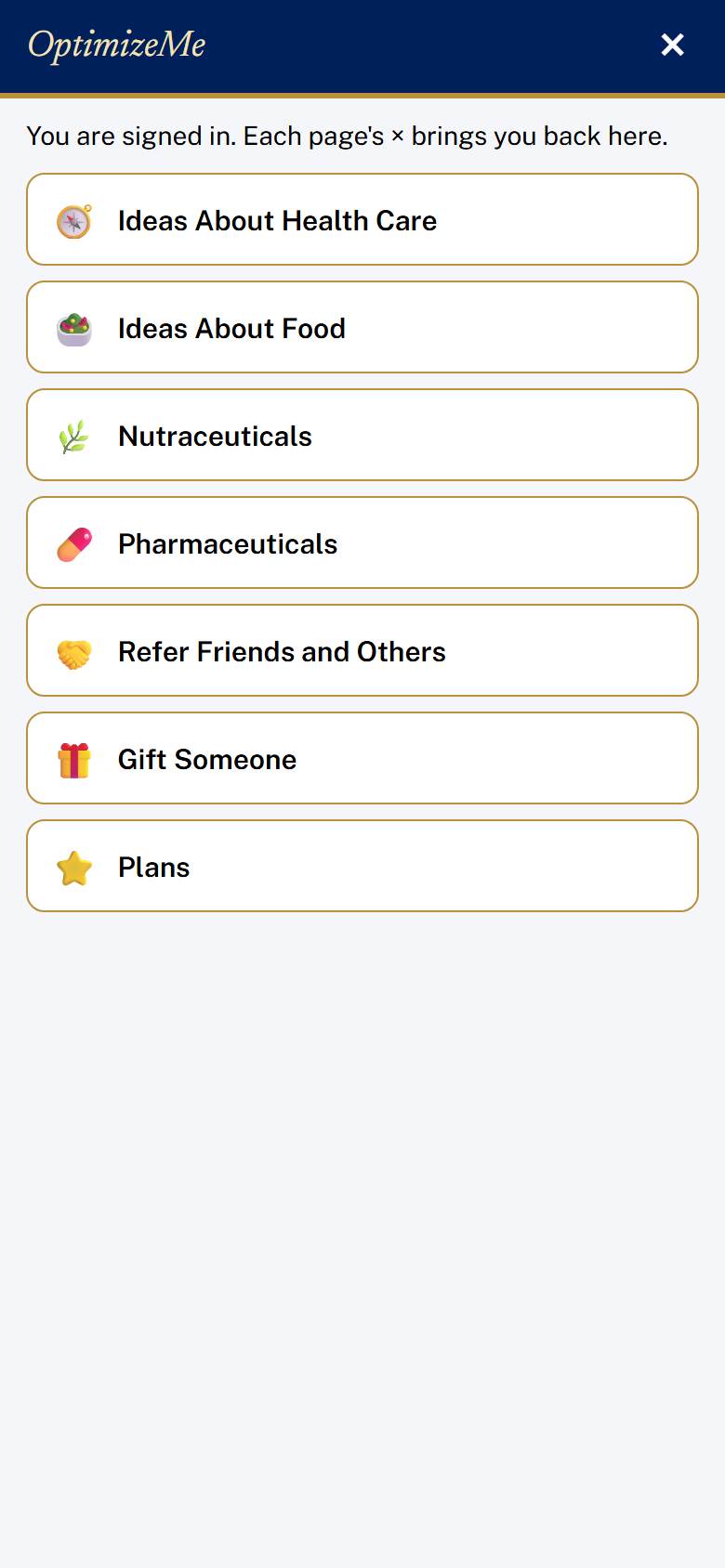
OptimizeMe resources
17. Changing your plan, cancelling, and downloading your record
To upgrade or renew, tap My account (the round letter at the top right of Home), then Change my plan; it opens Plans on optimizeme.us.
If you cancel, your locked record is stored on the OptimizeMe website. It can be retrieved when you resume active membership.
To download your record, tap My account, then Download my record. Make the PDF opens your phone's print window: choose Save as PDF (on an iPhone: tap Share, then Save to Files). Make the .zip folder gives you everything, with every picture, recording and file you added in its original form.
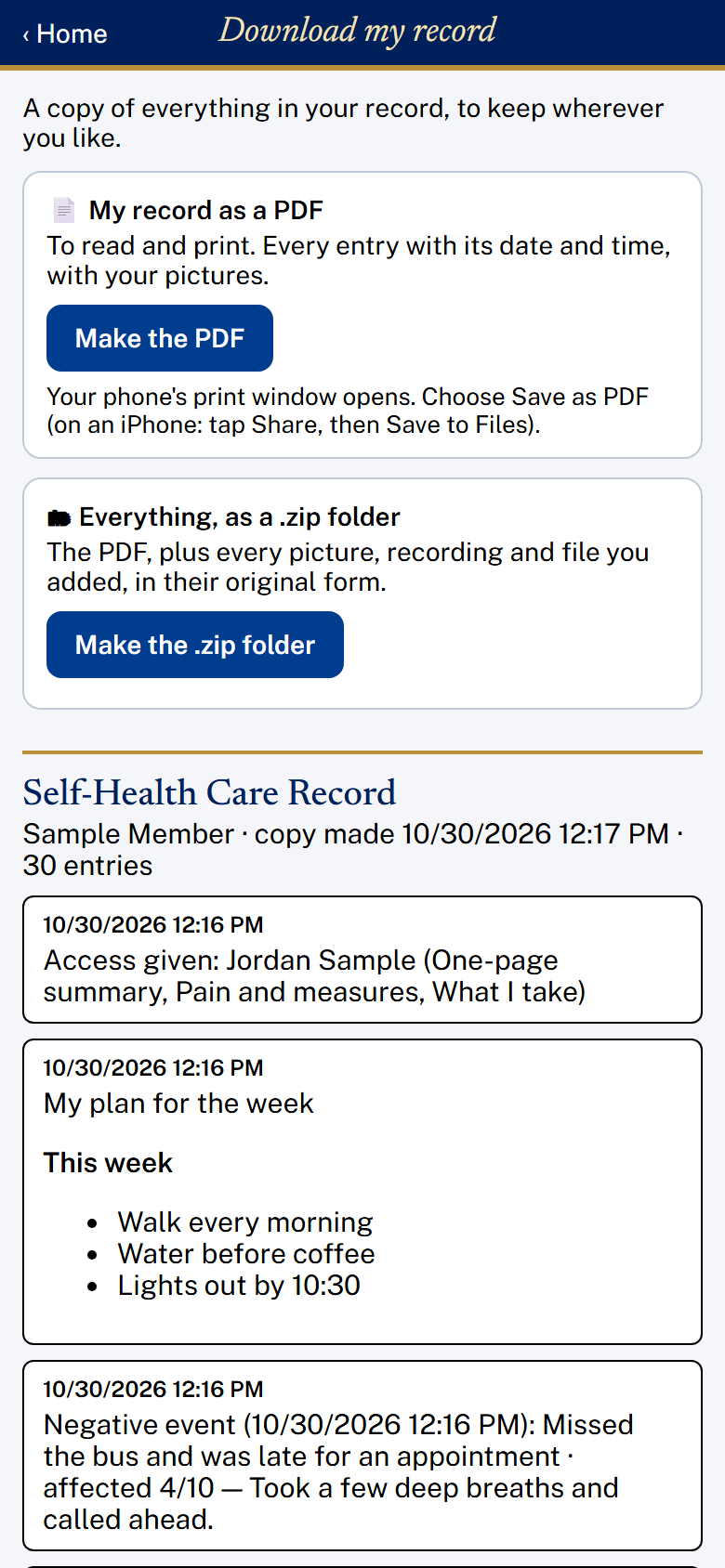
Download my record
18. Signing out
Tap My account, then Sign out. Signing out is the same as locking your app: Your record stays on your phone. Nothing is added or deleted from the record during that time. When you sign in again, the app opens, and any entries waiting to upload are uploaded automatically. You can also just lock your app, especially when you loan your phone for someone else to use.
19. Closing the app
The X at the top right closes your record to a cover screen. And, if you chose a lock, it locks the app. Tap Open my record to come back; this also loads the newest version of the app.
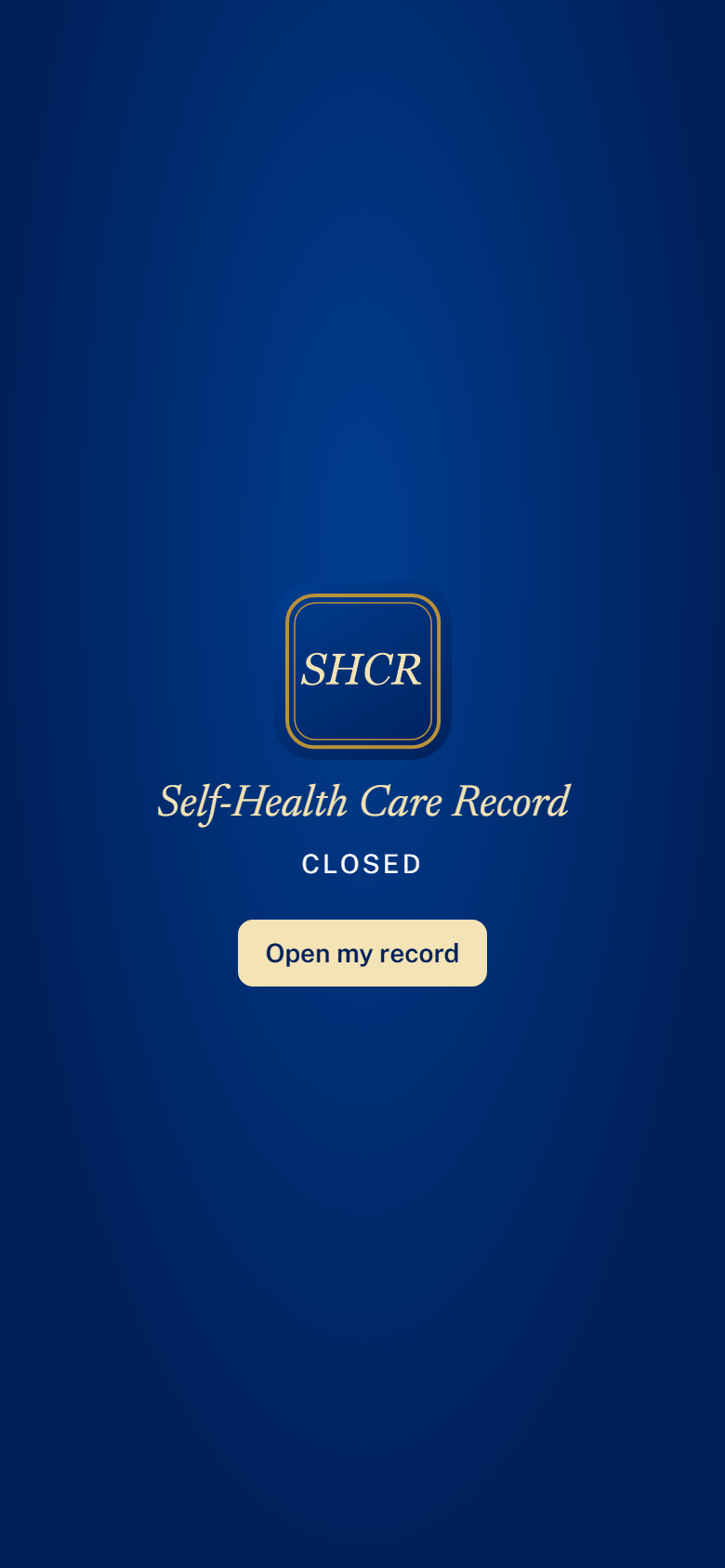
The closed cover, with Open my record
20. Contact
Email support@optimizeme.us.